Excel templates / Budget Templates / Budget Planner
Budgeting
Budget Planner
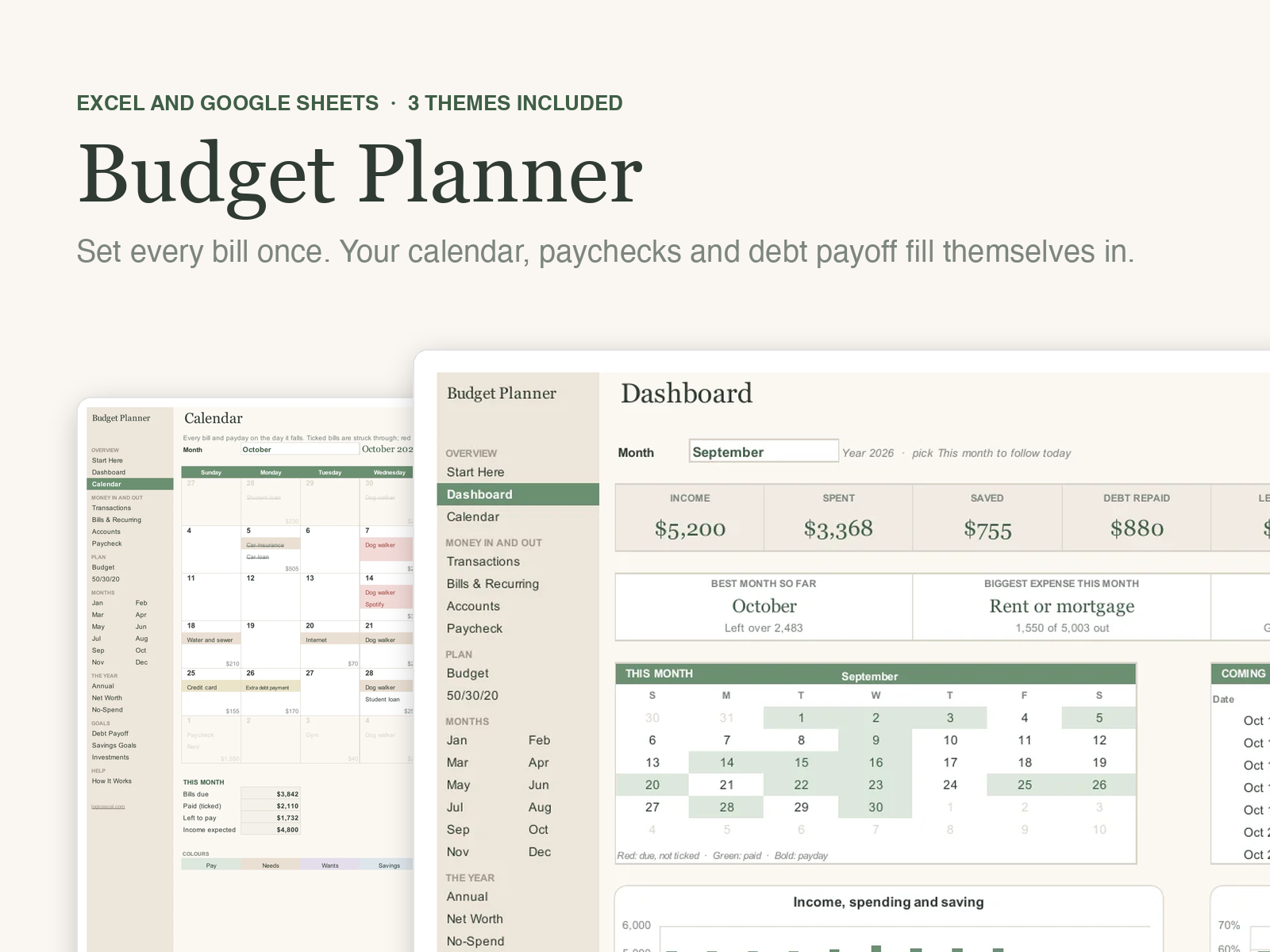
The LogicExcel Budget Planner is a one-year budget spreadsheet for Excel and Google Sheets. You enter each bill and payday once, tick bills off as you pay them, and it fills in a bill calendar, your account balances, a paycheck budget, a debt payoff plan and a dashboard for you. It has 29 tabs and suits anyone paid weekly, every two weeks, twice a month or monthly, on their own or with up to six people. It costs $19 and comes in three themes.
Budget Planner is ready, and we are finishing the checkout. Create a free account and we will email you the moment you can buy it.
Want to start today? The Simple Monthly Budget is free.
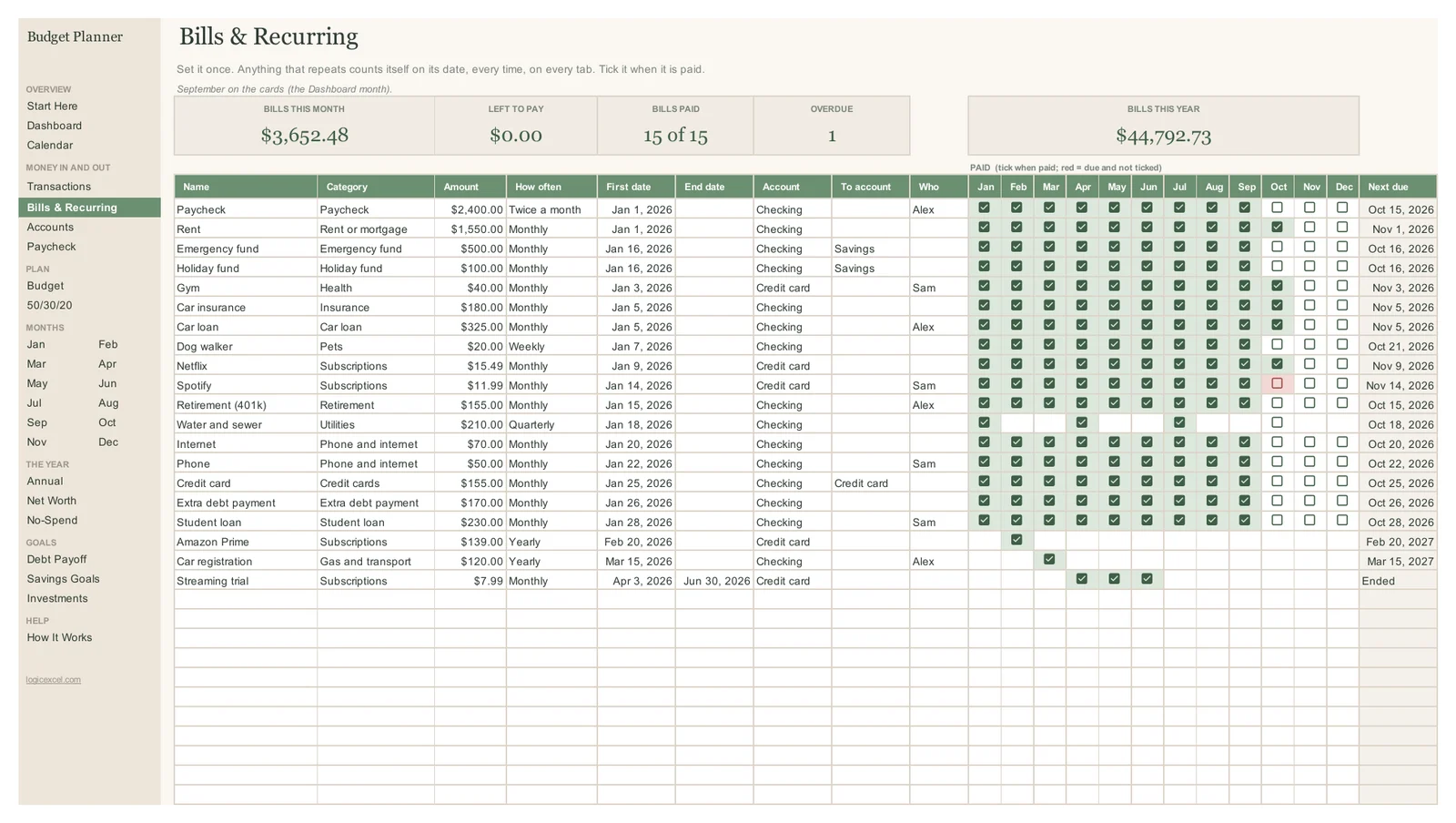
- Bills & Recurring: set each item once, 10 frequencies, tick it when it is paid, next due date at a glance
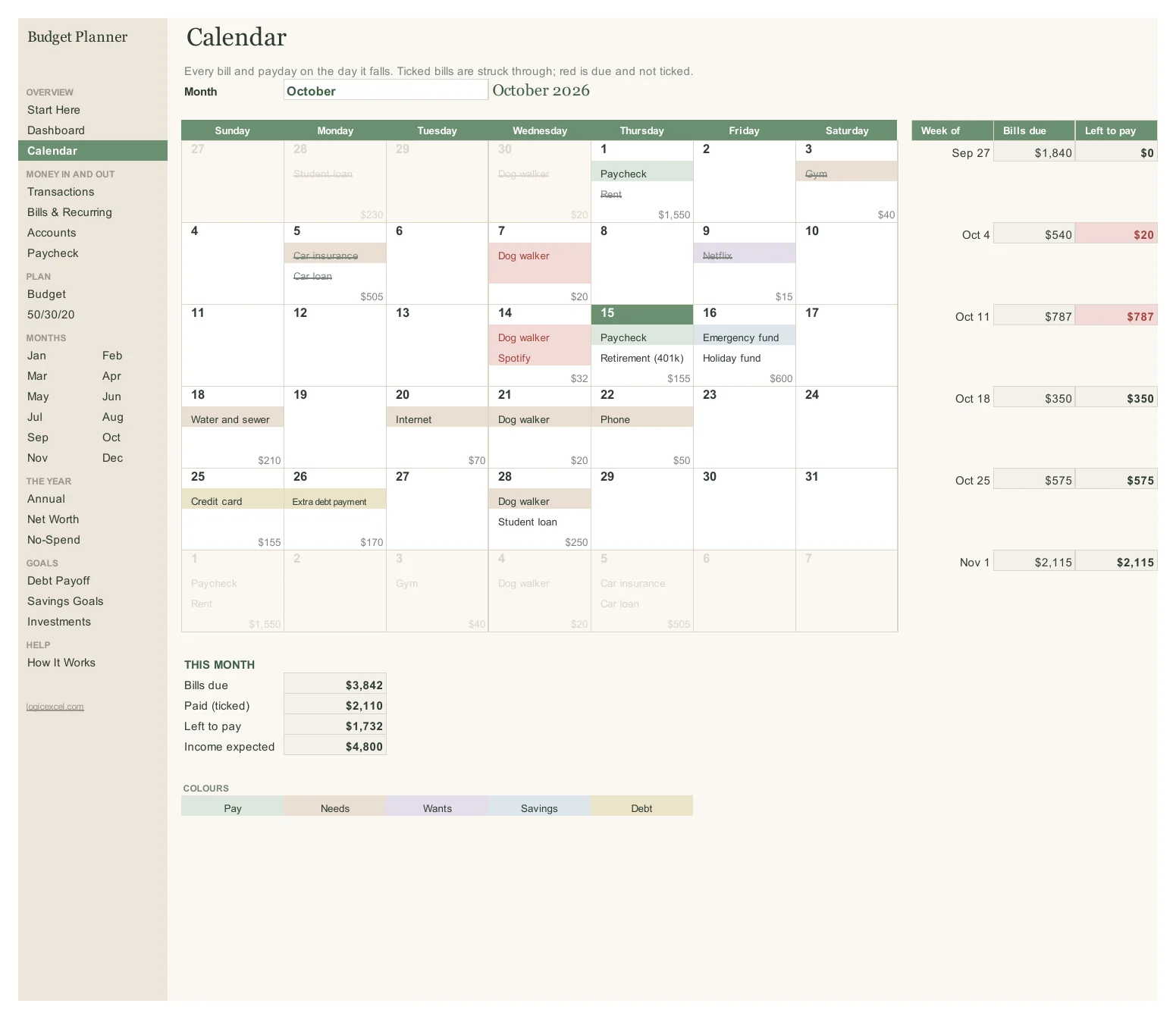
- A bill calendar, your account balances and a paycheck budget: what is due, where the money sits, what each payday has to cover
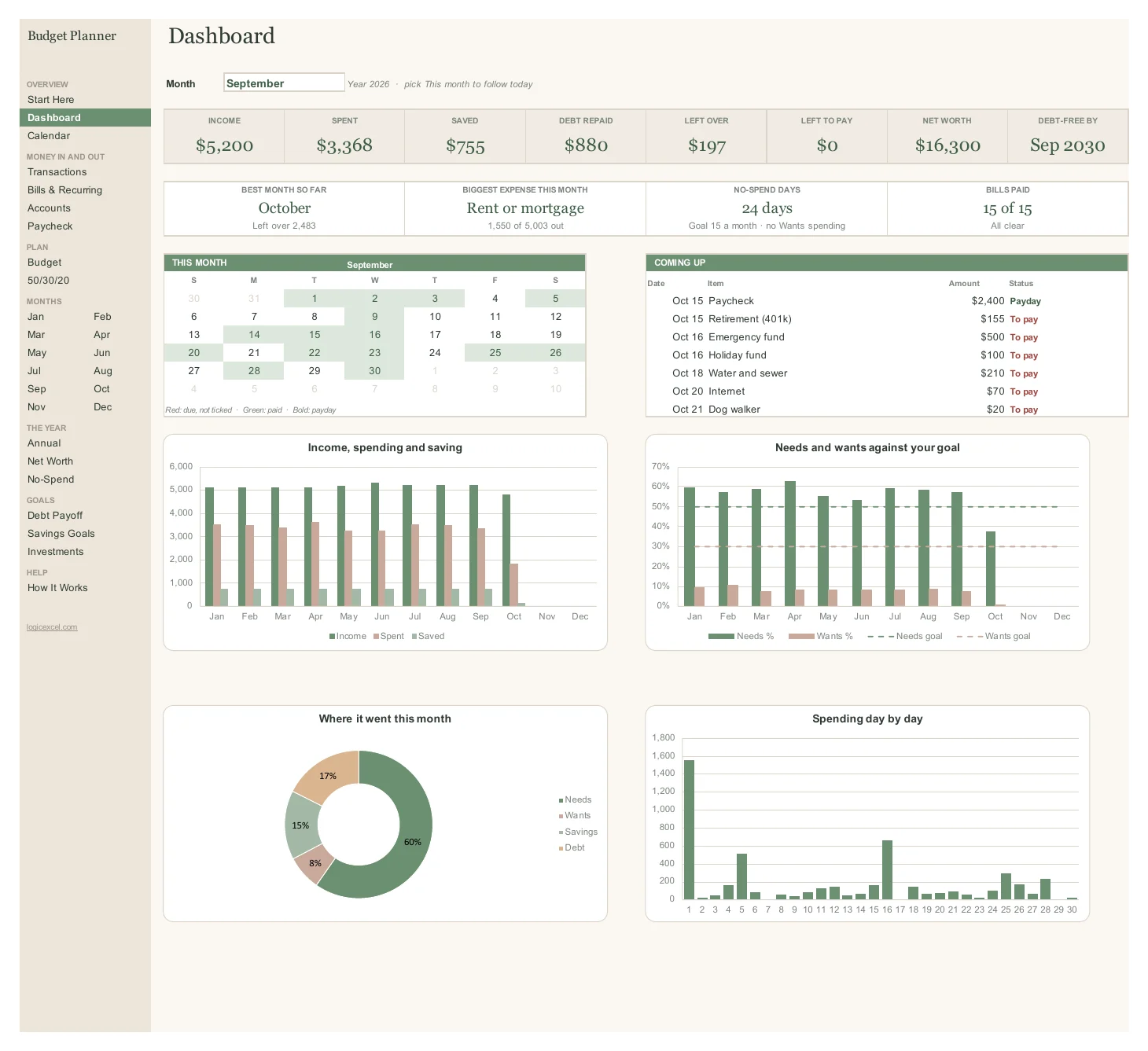
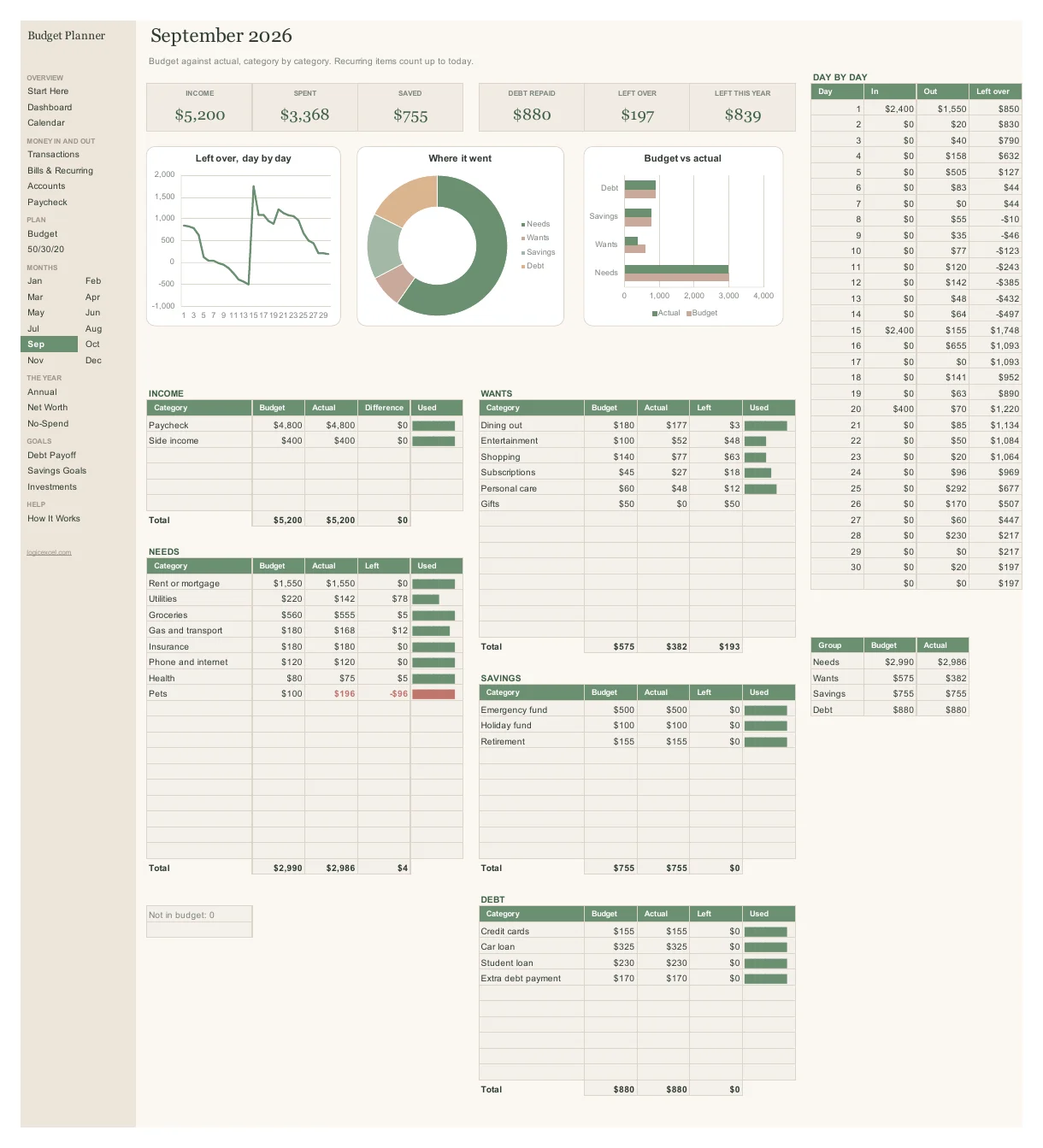
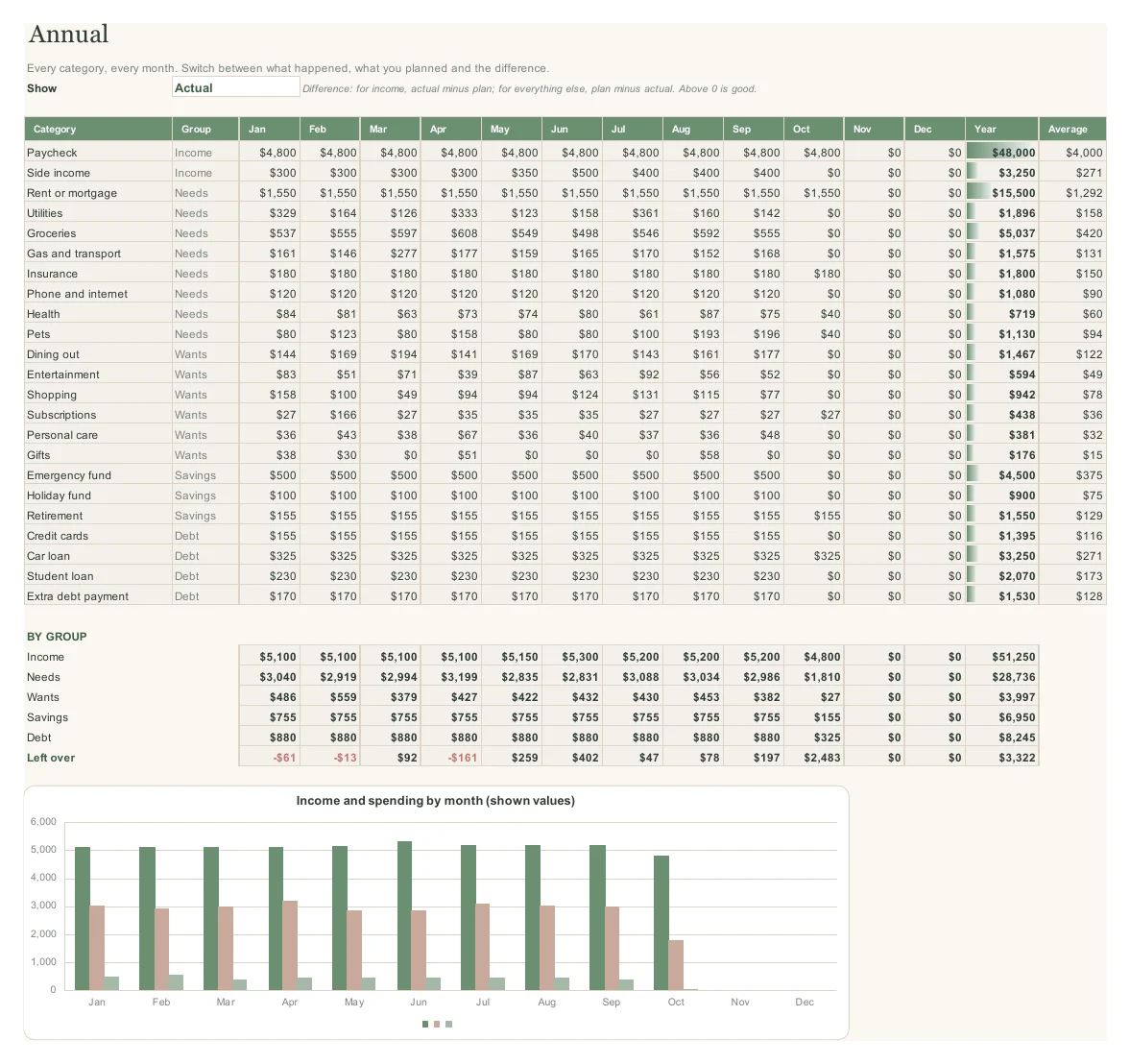
- A dashboard with 12 cards and 4 charts, a page for each of the 12 months, and an annual view
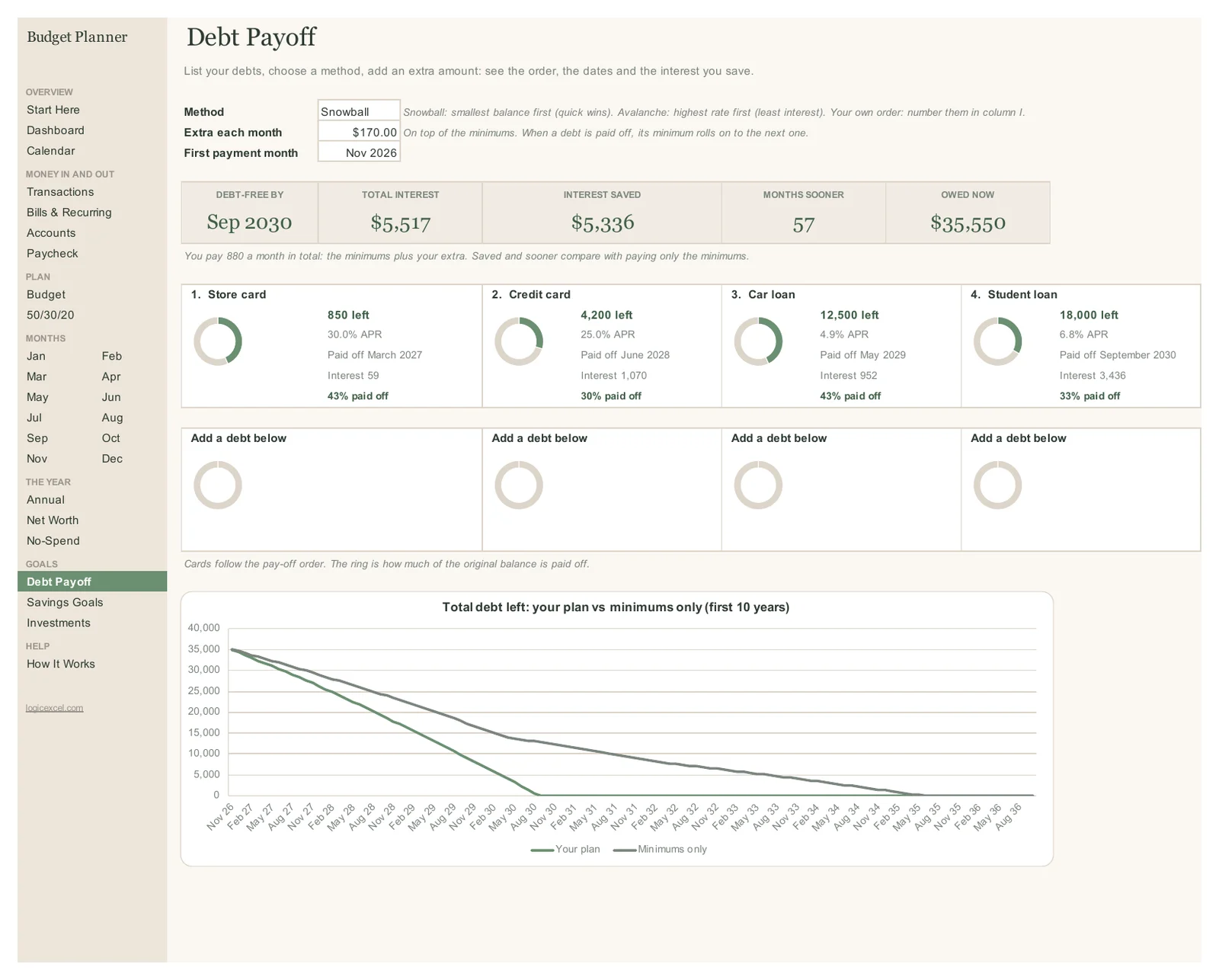
- Debt payoff by snowball, avalanche or your own order: up to 40 debts, your debt-free date and the interest you save
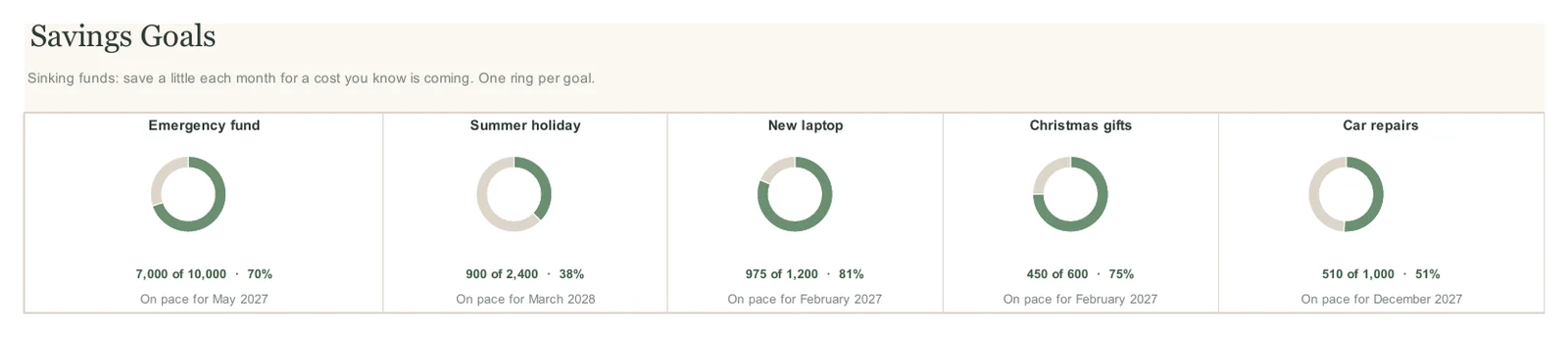
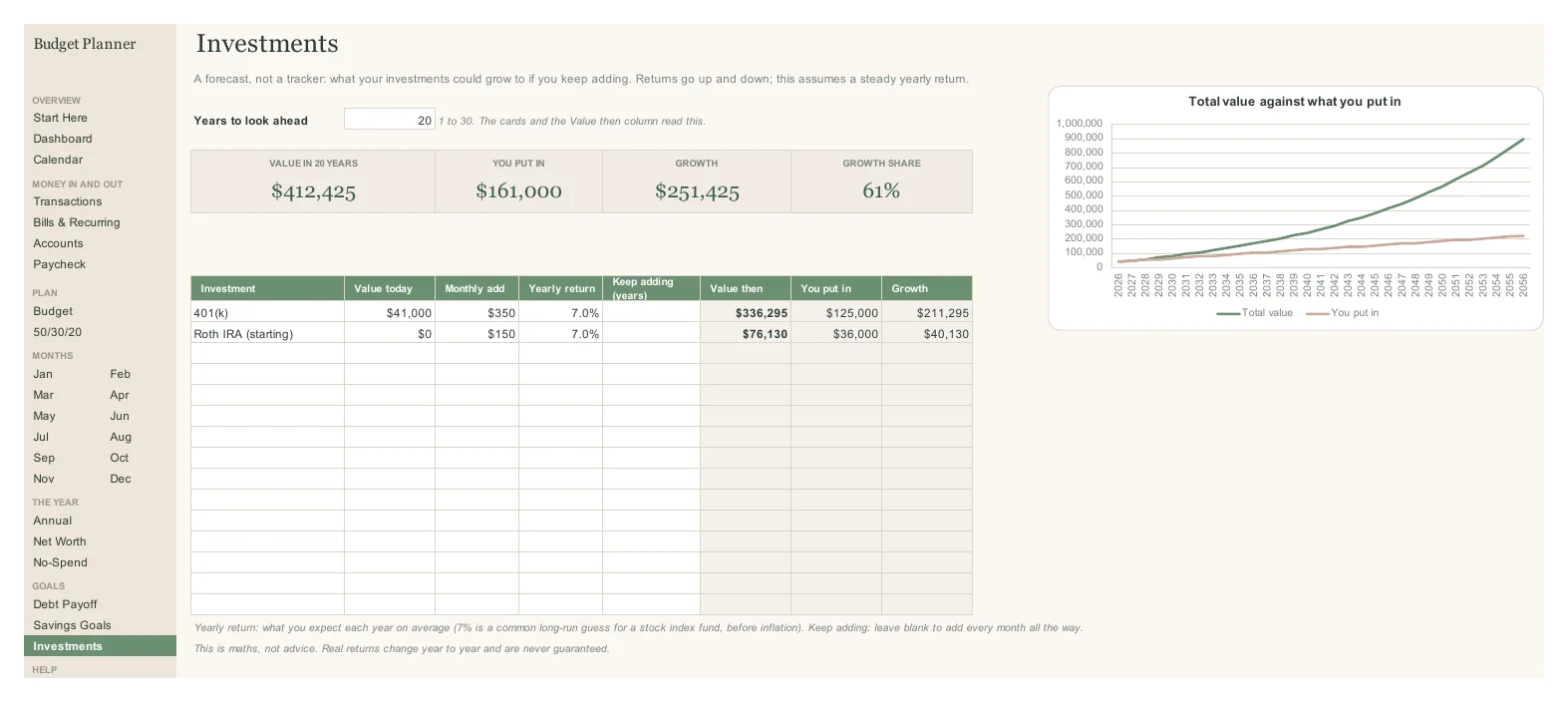
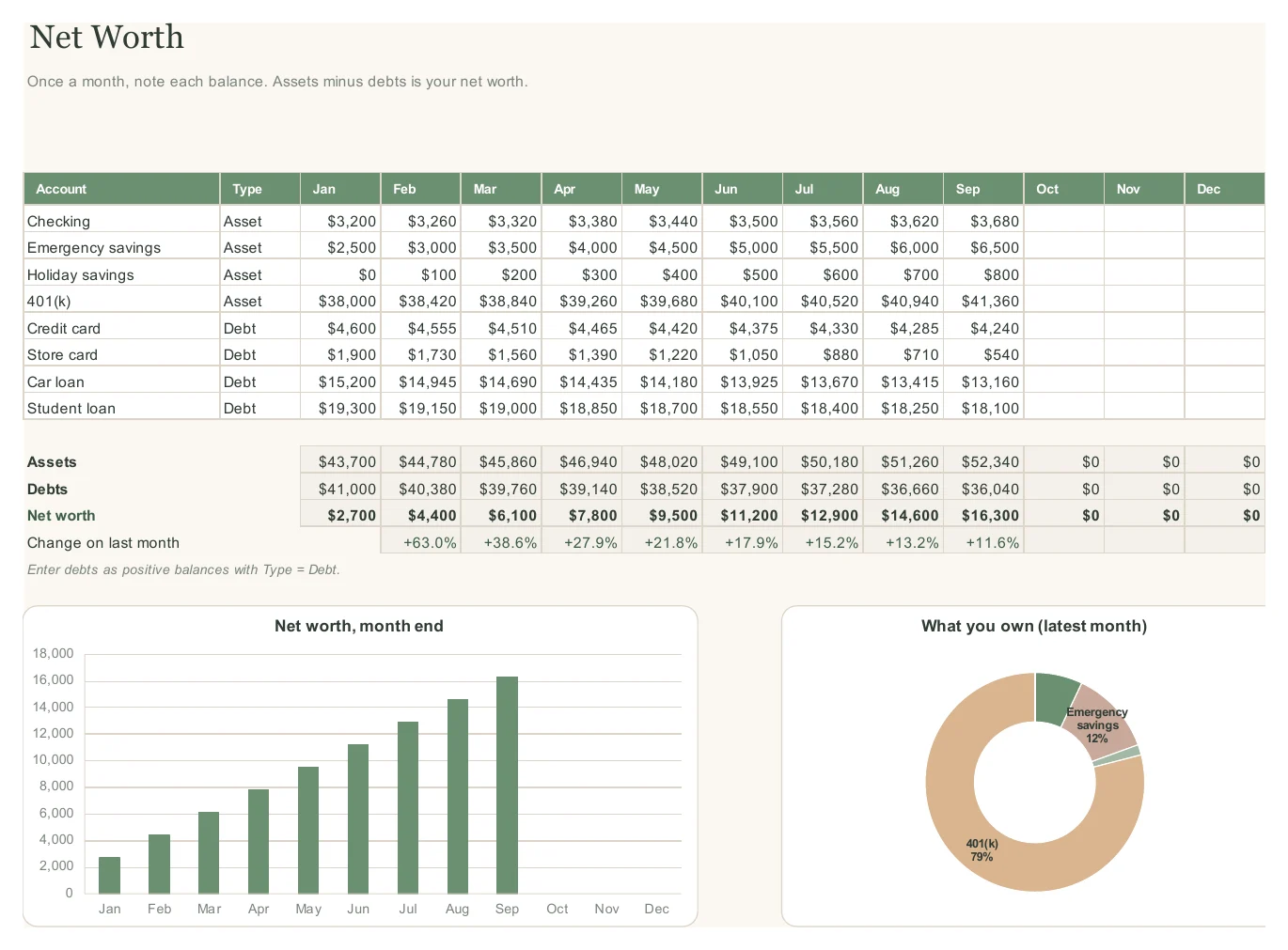
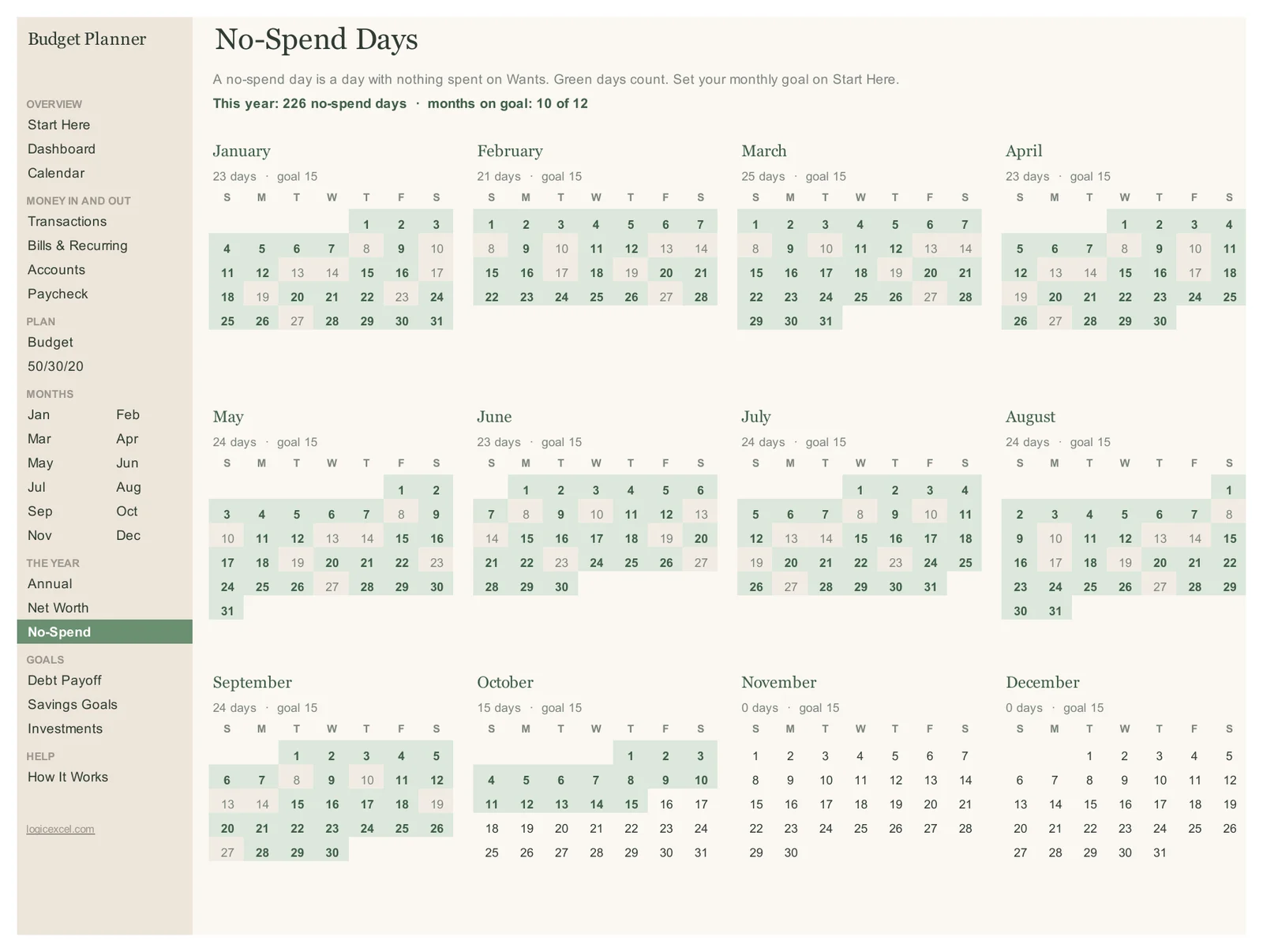
- Savings goal rings, net worth, no-spend days, the 50/30/20 check, and room for up to six people
- Three themes in the download: Sage, Emerald and Midnight (dark)
What is inside
A one-year budget spreadsheet for Excel and Google Sheets. Add each bill, payday and savings transfer once and it counts itself on its dates in every tab: a bill calendar you can tick off, your account balances, a paycheck budget, a dashboard, a page for each of the 12 months, a debt payoff plan, savings goal rings and net worth. Opens with an example household so you can see it working before you make it yours.
You will receive
- Three Excel files, one per theme: Sage, Emerald and Midnight (dark)
- 29 tabs: a dashboard, a calendar, 12 month pages and every tracker above
- An example household already filled in, so every tab works the moment you open it
- Tick boxes, dropdowns and formulas wired up, so there is nothing to build
- Every formula explained on How It Works, with the free lesson that teaches it
- Works in Google Sheets: File > Save as Google Sheets
- A four-page setup guide (PDF) with every step, Google Sheets included
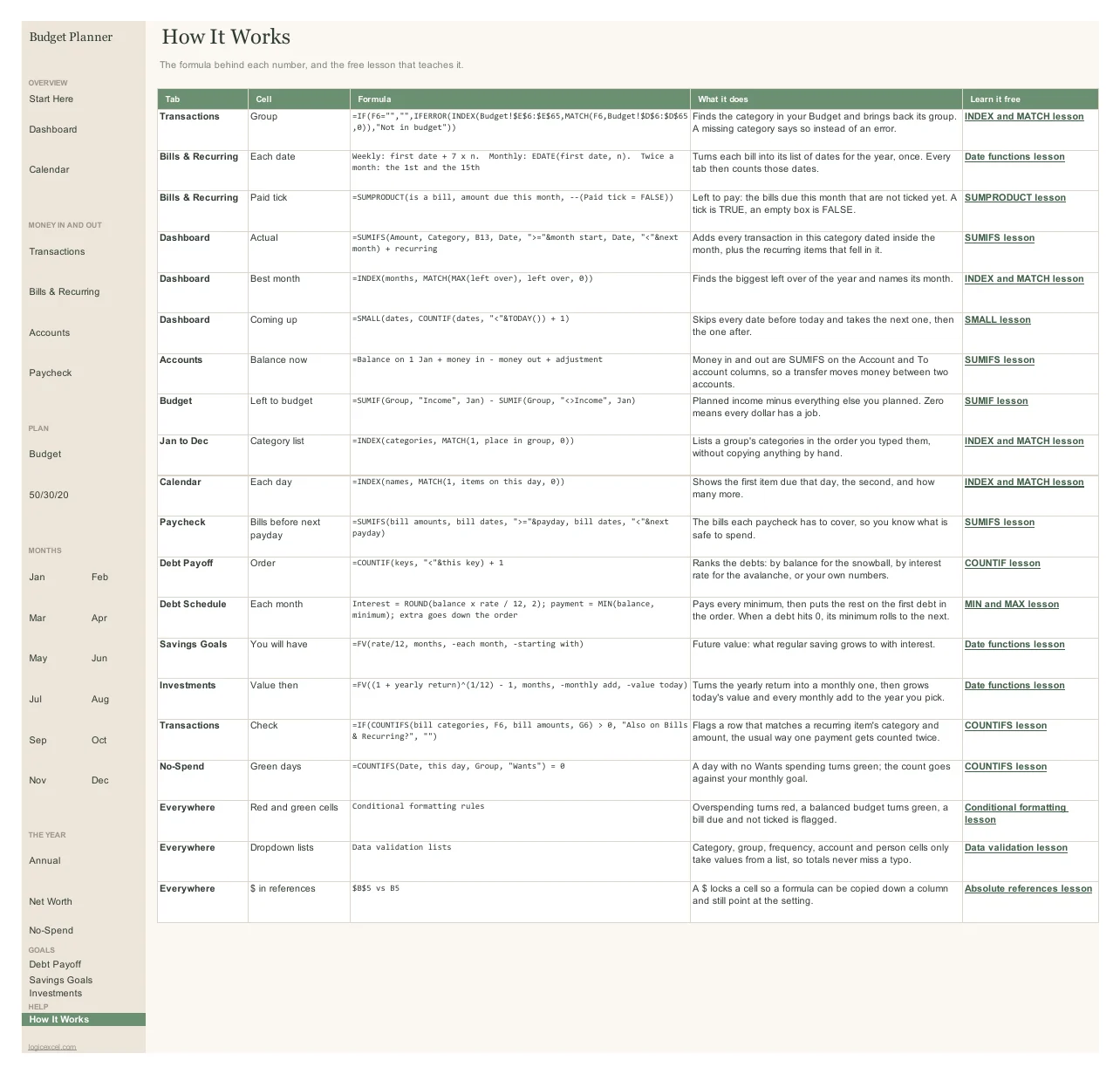
How it works
Set up in two minutes
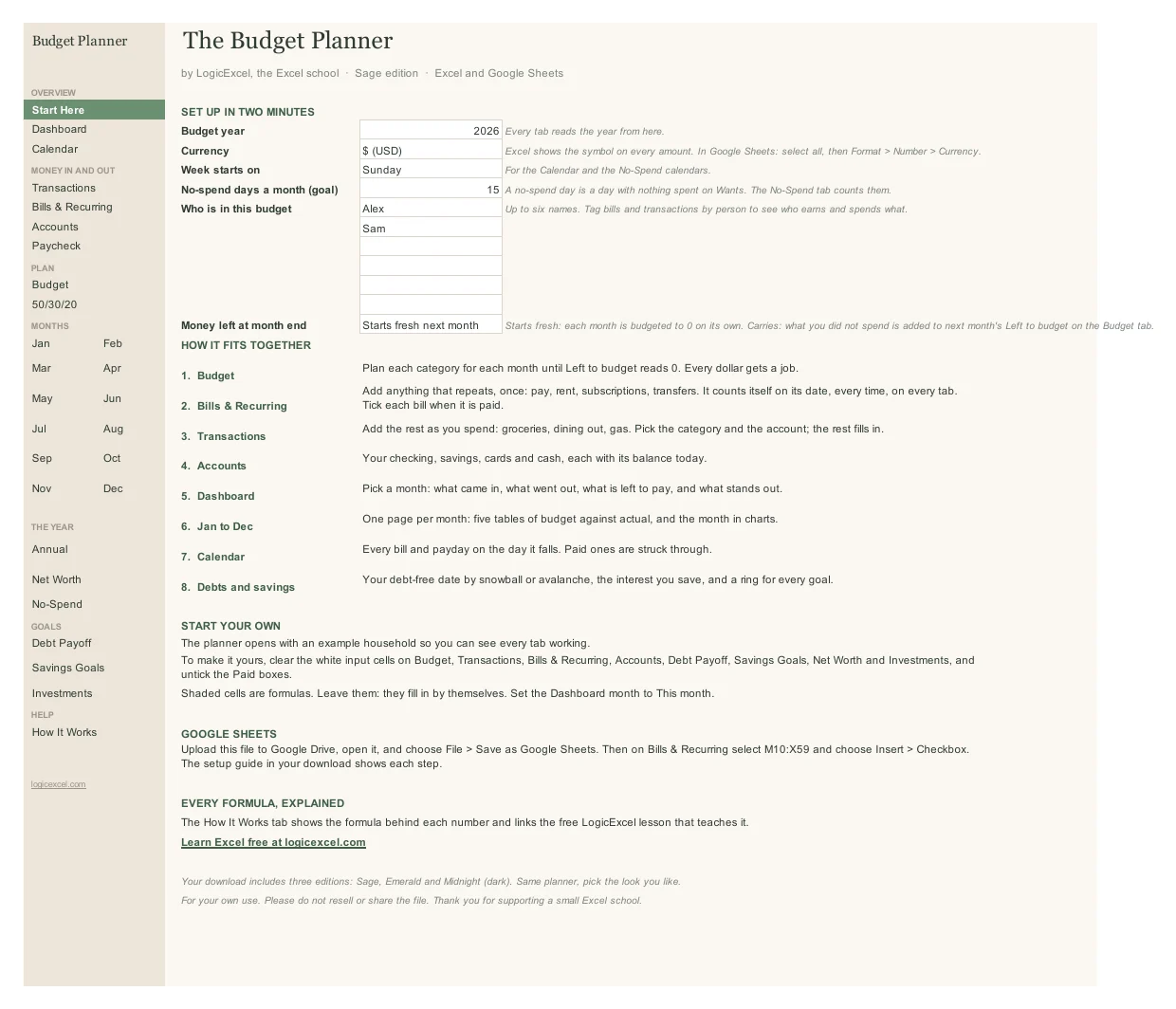
On Start Here, type the year, pick your currency and add up to six names. Every tab reads them from there.
Plan the year
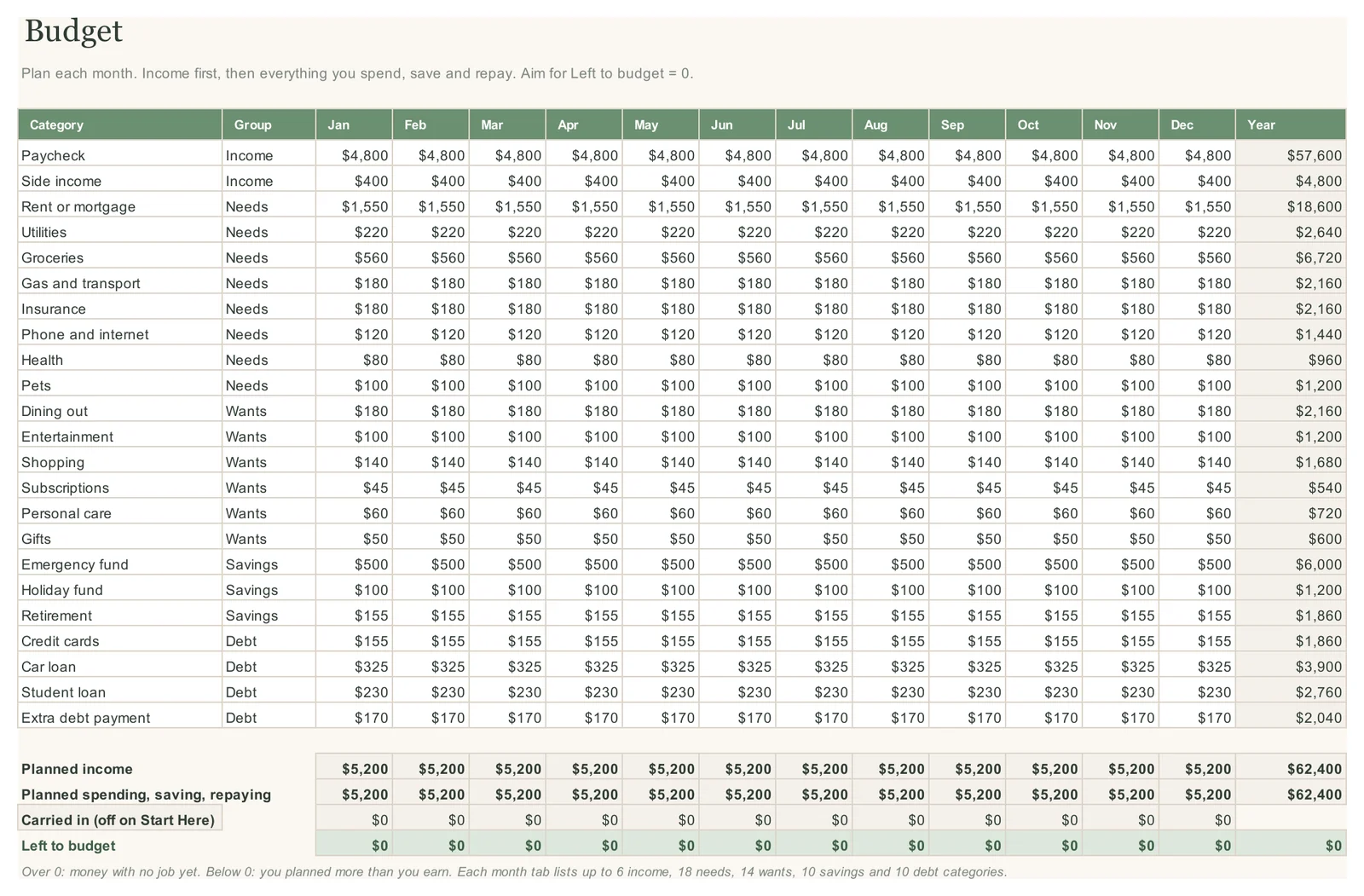
On Budget, plan each category for each month until Left to budget reads 0. A SUMIF adds up each group, so you see the gap as you type. SUMIF lesson
Add what repeats, once
On Bills & Recurring, add your pay, rent and subscriptions with how often they come, then tick each one when it is paid. Date formulas such as EDATE count how many times each one falls in a month, a pay period or a day. Date functions lesson
Log the rest as you spend
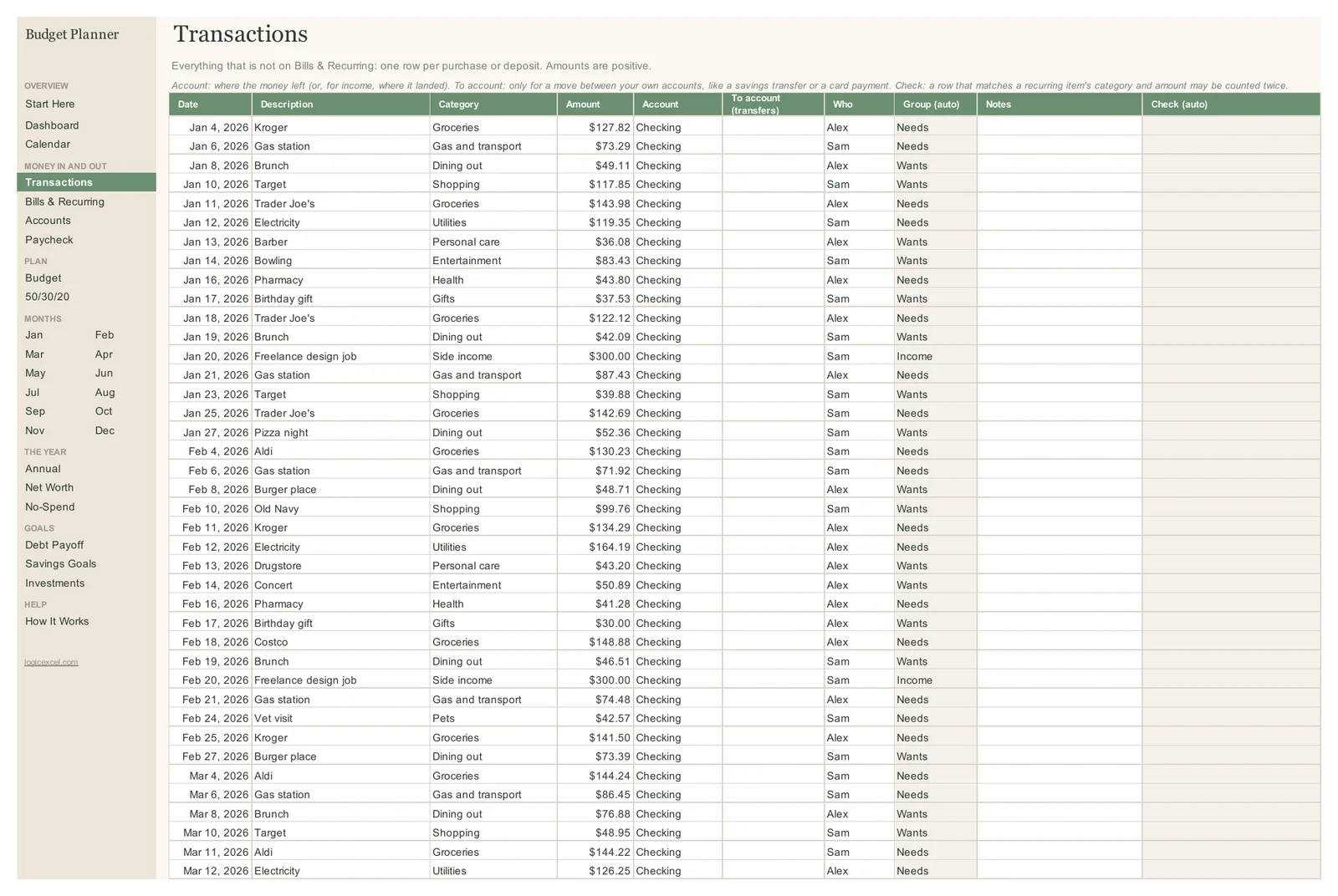
On Transactions, add groceries, dining out and the rest. Pick the category from the list and an INDEX and MATCH brings back its group. INDEX and MATCH lesson
Read the month
On the Dashboard, pick a month. Each Actual is a SUMIFS over that month's transactions plus the recurring items that fell in it. SUMIFS lesson
Plan your way out of debt
On Debt Payoff, list your debts and choose a method. The schedule pays every minimum, puts the rest on the first debt in the order, and rolls each minimum on when a debt is paid off. MIN and MAX lesson
Budget Planner is ready, and we are finishing the checkout. Create a free account and we will email you the moment you can buy it.
Want to start today? The Simple Monthly Budget is free.
Questions people ask
Does the Budget Planner work in Google Sheets?
Yes. Upload the file to Google Drive, open it, then choose File > Save as Google Sheets. The formulas, dropdowns, charts and colours come with it. Two things to set by hand: on Bills & Recurring select the tick-box cells (M10:X59) and choose Insert > Checkbox, and set the currency symbol with Format > Number > Currency.
Which versions of Excel does it need?
Microsoft 365 gives you real tick boxes. Older versions of Excel open it too, but the paid boxes show TRUE and FALSE, which you type in. Everything else uses long-standing functions such as SUMIFS, INDEX, MATCH and EDATE, so nothing else needs the newest version.
How do I mark a bill as paid?
On Bills & Recurring, tick the box in that bill's month. The Calendar strikes it through, the Dashboard counts it as paid, and a bill that is due and not ticked turns red until you do.
Does it keep my account balances?
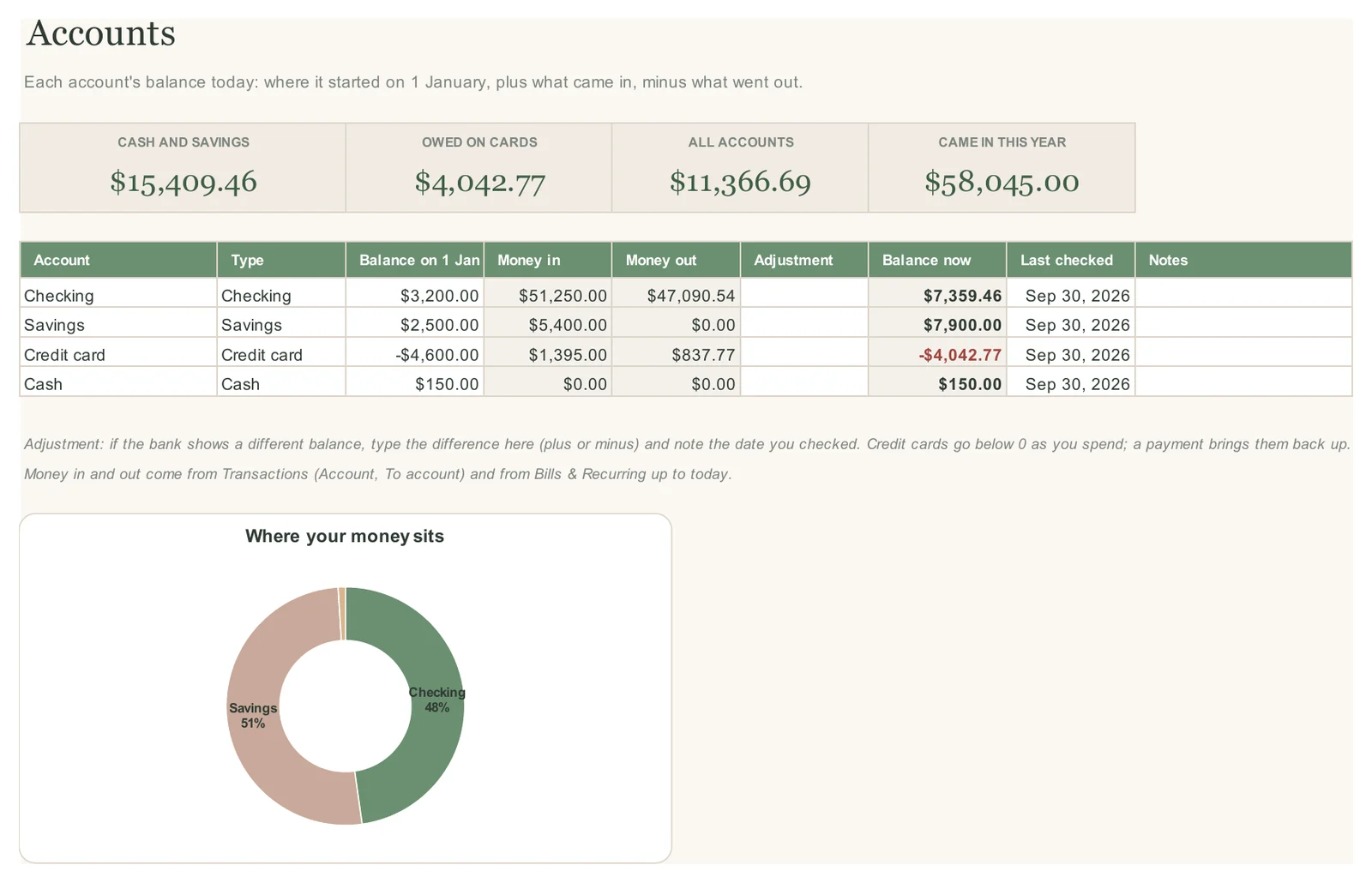
Yes. The Accounts tab lists up to 50 accounts. Each balance is where it started on 1 January plus what came in, minus what went out, taken from your transactions and your recurring bills. If the bank shows a different number, type the difference as an adjustment.
How many transactions can it hold?
10,000 rows on the Transactions tab, which is years of daily spending, and the dashboard and the 12 month pages read all of them.
Can I budget by paycheck if I am paid every two weeks?
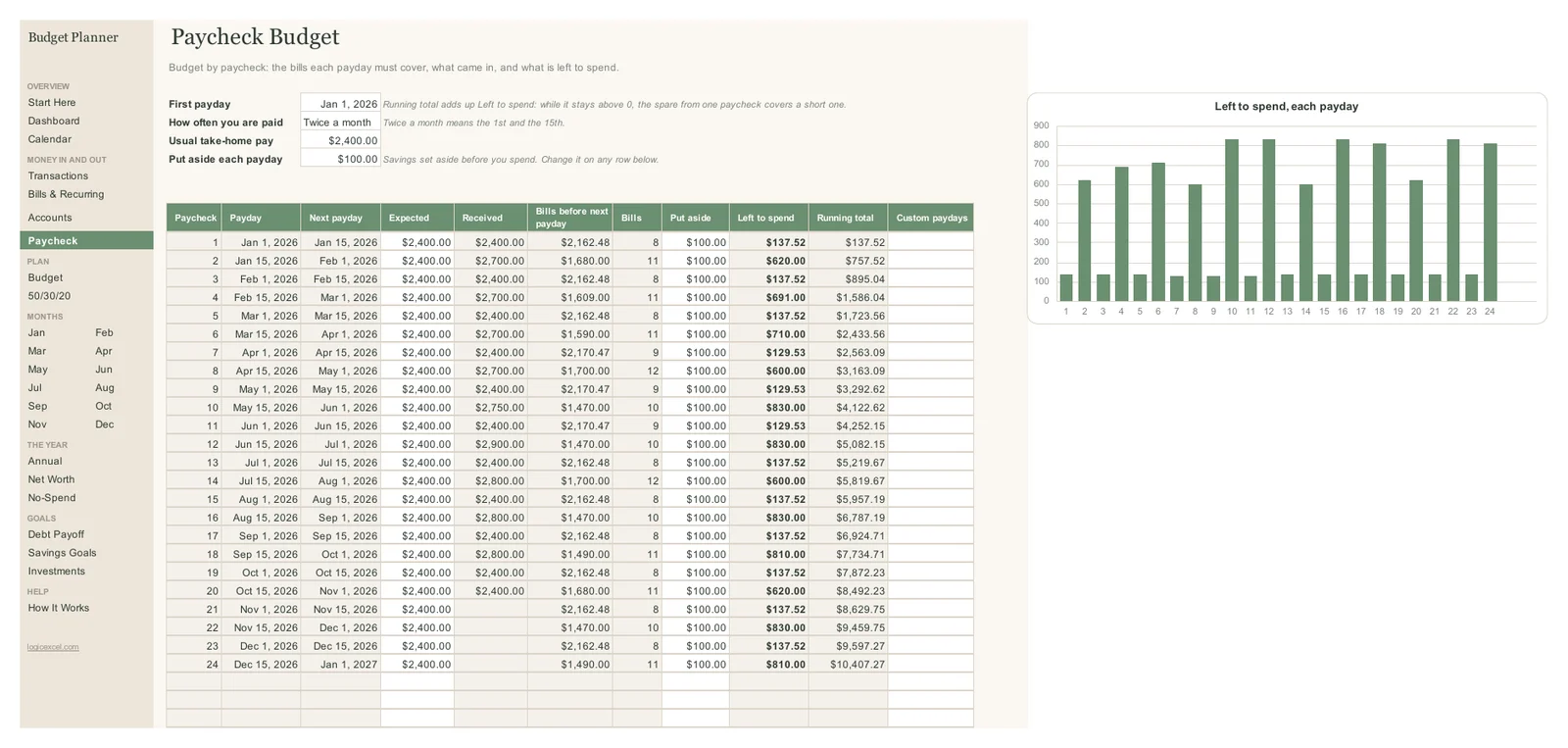
Yes. On the Paycheck tab, set How often you are paid to Every 2 weeks and enter your first payday. It lists every payday in the year with the bills due before the next one and what is left to spend.
Is it a zero-based budget?
Yes. The Budget tab shows Left to budget for every month, and you plan until it reads 0, so every dollar has a job. You can also simply plan and compare without balancing to zero.
Snowball or avalanche: which does it use?
Both, and a third option: your own order. Snowball pays the smallest balance first for quick wins; avalanche pays the highest interest rate first and costs less in interest. Switch between them and the debt-free date and interest update straight away.
Can my partner and I use it together?
Yes. Add up to six names on Start Here, then tag bills and transactions by person. The Dashboard shows what each person earned and spent. In Google Sheets you can both edit the same copy.
Which currencies does it support?
US, Canadian, Australian and New Zealand dollars, pounds, euros and rand are in the list on Start Here, and No symbol works for anything else. Excel shows the symbol on every amount.
Can I start in the middle of the year?
Yes. Plan from the month you start, and give each recurring item the date it next comes. Earlier months stay empty and the totals count from where you began.
What is in the download?
Three Excel files, one per theme: Sage, Emerald and Midnight (dark). They are the same planner, so pick the look you like. Each has 29 tabs and opens with an example household; clear the input cells to start your own.
Is there a free version?
Yes. The Simple Monthly Budget is free: one month, planned against actual, with the same categories and groups. It is a good way to start, and the Budget Planner takes over when you want the whole year.
Want to start free? The Simple Monthly Budget is free: plan the month, track every spend, and see what is left.
Built from these Excel functions
Each one has a free lesson you can practise in a live spreadsheet: learn the functions behind this template.