Small Business Bookkeeping & P&L
Profit and Loss, Balance Sheet and Sales Tax for Excel and Google Sheets
Created by LogicExcel
English Instant download
See inside the template
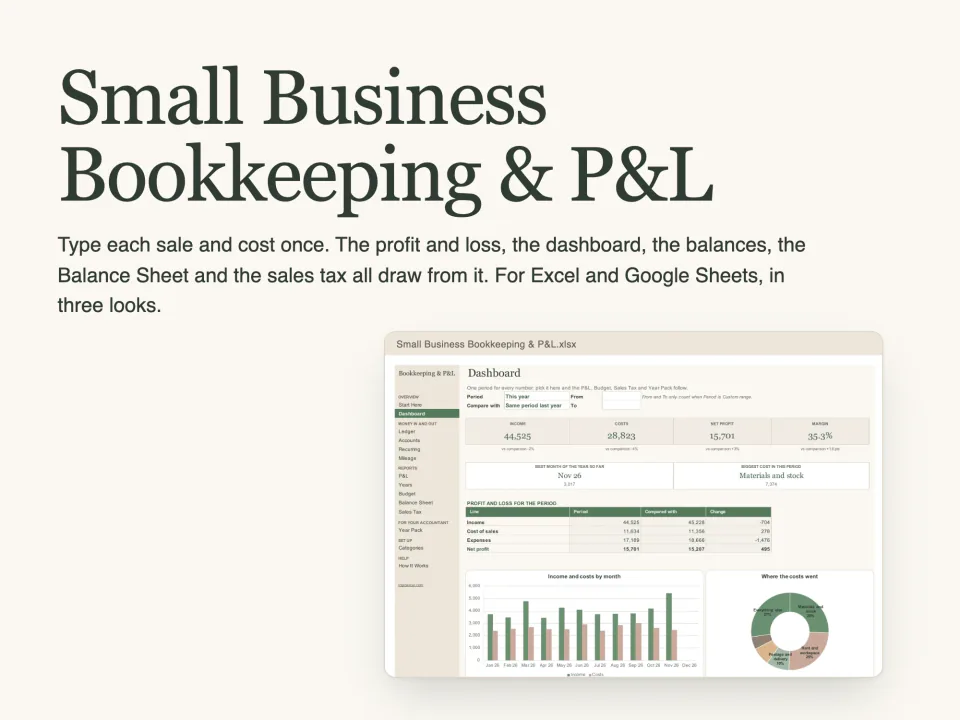
About this template
The LogicExcel Small Business Bookkeeping & P&L is a profit and loss Excel template for a freelancer, sole trader, online seller or small business, and it works in Google Sheets too. You type each sale and cost once on a Ledger, and the P&L, the Dashboard, the Accounts, the Balance Sheet, the Sales Tax tab and a printable Year Pack fill themselves in. It keeps the books on a cash basis, holds 10,000 entries, 30 accounts and 80 categories, and has no macros. It comes in three colour themes as four Excel files: Sage, Emerald and Midnight (dark), plus a Blank copy. A Google Sheets copy link is included.
What you will receive
- Four Excel files: three colour themes (Sage, Emerald and Midnight, dark) and a Blank copy with the example cleared
- 14 tabs on one menu: Start Here, Dashboard, Ledger, Accounts, Recurring, Mileage, P&L, Years, Budget, Balance Sheet, Sales Tax, Year Pack, Categories and How It Works
- An example small shop with almost two years of entries already filled in, so every tab works the moment you open it
- Room for 10,000 Ledger entries, 30 accounts and 80 categories, with a count of how much is used
- Dropdowns and formulas wired up, no macros, nothing to turn on
- Every formula explained on How It Works, with the free lesson that teaches it
- A Google Sheets copy link: one click makes your own copy
- A setup guide (PDF) with every step and the answers to the questions buyers ask
What is inside
A bookkeeping spreadsheet for a small business, in Excel and Google Sheets. You type each sale and cost once, on one Ledger, and the profit and loss, the dashboard, the account balances, the Balance Sheet, the sales tax and a printable Year Pack all draw from it. It opens with an example small shop, so you can see it working before you make it yours.
How it works
Set up
On Start Here, type your business name and pick your currency, your tax area and the month your year starts. The first step turns green when they are set.
Add your accounts
On Accounts, list your bank, cards, cash and online payment accounts, and what each held before your first entry.
Type a sale or a cost
On Ledger, add a row: date, type, category and amount. Leave Account blank and it uses your first account. Paste rows from your bank if you have them. SUMIFS lesson
Read the Dashboard
Pick a period. Income, costs, profit and margin are your first real numbers, and they move as you type. Date functions lesson
Match your bank (optional)
On Accounts, type a statement date and closing balance. The difference and the likely reason appear. COUNTIFS lesson
Check the Balance Sheet and print (optional)
The Balance Sheet should read Balanced. Then open Year Pack and print or save the pages your accountant asks for. SUM lesson
4.5 LogicExcel rating · 782 ratings
From learners on LogicExcel's lessons and courses, made by the same team as this template. The template is new, so it has no ratings of its own yet.
Actually fun and well designed.
Easy to follow, actually fun and well designed.
Beginner friendly.
Easy to follow.
Beginner friendly.
Beginner friendly, easy to follow and actually fun.
Built from these Excel functions
Each one has a lesson you can practise in a live spreadsheet: learn the functions behind this template.
Price, access and refunds
- $24.99 once, no subscription.
- Pay, download, and keep the link we email you to download it again whenever you need it.
- A download cannot be given back, so a template is not refundable once bought. The refund policy has the details.
Pairs well with
Paste your export and your bank lines. The cleaning, matching, reconciliation and checks run themselves.
Six workpapers for the close, each with its own check.
Questions
Can I start my year in any month?
Yes. On Start Here, pick the year and the month your year starts in (January, April, July, any month). Entries never move: only the periods the reports read change. Years shows five years side by side, so a new year does not need a new file.
How do I record money I put in or take out of my own business?
On Ledger, pick the type Owner in or Owner out and the account. It moves the account and the owner's share on the Balance Sheet, and it is never income or a cost, so your profit stays honest.
How are transfers and card payments kept from counting twice?
A Transfer moves money from one of your accounts to another and never reaches the P&L. Paying a credit card from your bank is a Transfer to the card: the purchases were counted when you made them, so paying the card is not a second cost.
Does it work in Excel and in Google Sheets?
Yes, both. The Excel files use only functions that Excel 2013 and Google Sheets share, so nothing needs Excel 365. For Google Sheets, the download includes a link that makes your own copy in one click. How It Works lists the few small differences, such as how a date is drawn.
Is it the cash basis or the accrual basis?
Cash basis: money counts on the day it moves. That suits a freelancer, a sole trader, a side hustle or a small shop. It is not payroll, accrual accounting or a bank feed, and Start Here says so, so you know before you start.
How do I rename or add categories and accounts, and how many fit?
Type a new name in the next empty row of Categories or Accounts and it shows in the Ledger dropdowns. There is room for 80 categories, 30 accounts, 10 tax rates and 10,000 Ledger entries, and Start Here shows how full each is. Entries match by name, so to rename one, change it on Categories and use Find and Replace on the Ledger column.
How do I handle sales tax, VAT or GST?
Pick your area on Start Here. On a Ledger row, either pick a tax rate (the amount you type includes the tax) or type the tax itself. The Sales Tax tab then shows tax collected, paid and what is still owed for any period. The rates are yours to set. The names of the groups are labels to help you sort, not tax advice: your accountant or tax office decides what applies to you.
Can I keep several years in one file and switch between them?
Yes. Years shows five fiscal years side by side. To look at one on the Dashboard, set the period to Last year or a custom range. Nothing is cleared when a year ends.
Can I paste my bank statement?
Yes. Paste the dates, amounts and names into the Ledger with Paste Special, values only, so the dropdown lists stay. Then pick a category for each row. A check on each row flags one that was pasted twice.
Will my accountant be able to use what it prints?
Year Pack is set to print: the profit and loss, the Balance Sheet, tax and mileage, with the groups named for your tax area. Print it or save it as a PDF and send it. Ask your accountant what they want to see, and print that.
What is locked, and why?
Every cell that holds a formula is locked, so one slip cannot break a total. The cells you type in are open. There is no password: in Excel choose Review > Unprotect Sheet, in Google Sheets choose Data > Protect sheets and ranges.
Are there macros?
No. There are none, and the file never asks you to turn anything on.
Is it in my language?
The template is in English. Dates and numbers show in your computer's regional format (in Google Sheets, File > Settings > Locale). Read how the formulas work on How It Works.
Can I try it before I make it mine?
It opens with an example small shop with almost two years of entries, so every tab is working the moment you open it. When you are ready, open the Blank file: the same template with the example cleared.
Do I need to know Excel?
No. Type in the plain cells and everything else fills in. The shaded cells are formulas and are protected. If you want to see how it works, every formula is explained on How It Works with a free LogicExcel lesson.