Project & Task Tracker
Gantt Chart, Kanban Board and Eisenhower Matrix for Excel and Google Sheets
Created by LogicExcel
English Instant download
See inside the template
About this template
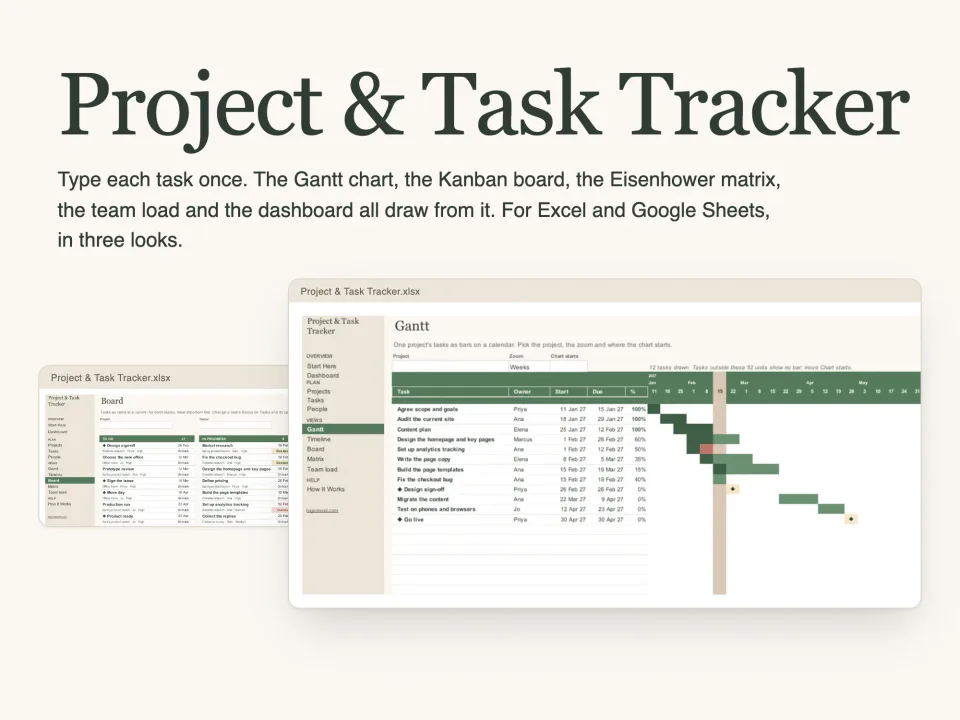
The LogicExcel Project & Task Tracker is a project tracker for Excel and Google Sheets with a Gantt chart, a Kanban board and an Eisenhower matrix. You type each task once, with its dates, and the Gantt, the Board, the Matrix, the Timeline, Team load and the Dashboard fill themselves in. It holds 1,000 tasks, 100 projects and 30 people, has no macros, and suits a team or a one-person shop. It comes in three color themes as four Excel files: Sage, Emerald and Midnight (dark), plus a Blank copy. A Google Sheets copy link is included.
What you will receive
- Four Excel files: three colour themes (Sage, Emerald and Midnight, dark) and a Blank copy with the example cleared
- 11 tabs on one menu: Start Here, Dashboard, Projects, Tasks, People, Gantt, Timeline, Board, Matrix, Team load and How It Works
- An example of four projects already filled in, so every view works the moment you open it
- Room for 1,000 tasks, 100 projects and 30 people, with a count of how much is used
- Dropdowns and formulas wired up, no macros, nothing to turn on
- Every formula explained on How It Works, with the free lesson that teaches it
- A Google Sheets copy link: one click makes your own copy
- A setup guide (PDF) with every step and the answers to the questions buyers ask
What is inside
A project and task tracker for Excel and Google Sheets. Type each task once, with its project, owner, dates, hours and status, and the Gantt chart, the Kanban board, the Eisenhower matrix, a timeline of every project, the team load and a dashboard all draw from that one list. It opens with an example of four projects, so you can see it working before you make it yours.
How it works
Add your first project
On Projects, type its name on the first empty row. A name is all it needs: dates and a budget are optional.
Type each task once
On Tasks, add the task, pick its project, then a start and a due date. Add an owner, hours and a priority if you want them on Team load and the Matrix. That row is the only place you type it. IF lesson
Open the Gantt
Pick the project and a zoom, and the task is a bar on the calendar. The done part, the milestone diamonds and today's column draw themselves. Conditional formatting lesson
Work the Board and the Matrix
Change a Status on Tasks and its card moves on the Board. Priority and due date decide its box on the Eisenhower Matrix. SMALL and LARGE lesson
Add your team
On People, type a name and the hours that person has each week. Give a task an owner and its hours, and Team load fills in. INDEX and MATCH lesson
Read the Dashboard
The tiles count what is open, late and due soon, and the charts show status, progress, hours and budget. Start Here tells you if anything needs a look. COUNTIFS lesson
4.5 LogicExcel rating · 782 ratings
From learners on LogicExcel's lessons and courses, made by the same team as this template. The template is new, so it has no ratings of its own yet.
Actually fun and well designed.
Easy to follow, actually fun and well designed.
Beginner friendly.
Easy to follow.
Beginner friendly.
Beginner friendly, easy to follow and actually fun.
Built from these Excel functions
Each one has a lesson you can practise in a live spreadsheet: learn the functions behind this template.
Price, access and refunds
- $19.99 once, no subscription.
- Pay, download, and keep the link we email you to download it again whenever you need it.
- A download cannot be given back, so a template is not refundable once bought. The refund policy has the details.
Pairs well with
Type each task once. Your day, week and month fill themselves in, with habits and a journal beside them.
Questions
How do I make a Gantt chart in Excel with this template?
Type each task on Tasks with a start date and a due date. Open Gantt, pick the project and a zoom (days, weeks or months), and every task is a bar. The done part is darker, milestones are diamonds, late tasks turn red and today is shaded. The bars are cell colours driven by formulas, so there is nothing to draw and no macro.
Can I drag the cards on the Kanban board?
No, and we say so up front: dragging needs a macro, and this file has none. Change the task's Status on Tasks (To do, In progress, On hold or Done) and its card moves on the Board at once.
How does the Eisenhower matrix decide where a task goes?
From two things you already type. Important means the task's priority is High. Urgent means it is due within the number of days you set on Start Here (7 to begin with), or it is late. Change either and the task moves to another box. Done tasks leave the matrix.
Does it work in Excel and in Google Sheets?
Yes, both. The Excel files use only functions that Excel 2013 and Google Sheets share, so nothing needs Excel 365. For Google Sheets, the download includes a link that makes your own copy in one click. The bars, the colours and the charts look the same in both; How It Works lists the few small differences, such as the currency symbol on money cells.
Are there macros?
No. There are none, and the file never asks you to turn anything on.
Can I add more rows or columns, or change the layout?
Rows: type on the next empty row, there is room for 1,000 tasks, 100 projects and 30 people, and Start Here shows how much is used. Layout: column widths and row heights are free to change. To add or remove a column, choose Review > Unprotect Sheet (there is no password), make the change and protect it again. Tasks also has three columns of your own to name and use as you like.
How do I add a team member?
On People, type the name, role and hours a week on the next empty row. The owner list and Team load include that person at once.
How do I rename a project?
Tasks hold their project's name, so a rename on Projects leaves the old name on its tasks. Start Here counts them for you (Project not in the list). To fix them in one go, select the Project column on Tasks, use Find and Replace (Ctrl+H on Windows, Cmd+Shift+H on a Mac) and Replace All.
Can I run more than one project?
Yes. Add each on Projects and every picker (Gantt, Board, Matrix and Dashboard) lists it straight away. The Timeline shows all your projects together.
Why would a formula fail in my Excel?
It should not: nothing newer than Excel 2013 is used. If a cell shows an error, read the Checks panel on Start Here first. A date typed as text is the usual cause, and Checks says which rows to fix.
Is it in my language?
The tracker is in English. Dates and numbers show in your computer's regional format (in Google Sheets, File > Settings > Locale).
Can I print the Gantt chart?
Yes. Gantt, Timeline and Dashboard are set to print one page wide, landscape. Pick the project first, then File > Print, or save as a PDF. The Gantt fits one page, so its text is small on paper: it prints well as a poster, less well as a reading copy.
Can I try it before I make it mine?
It opens with an example of four projects, so every tab is working the moment you open it. When you are ready, open the Blank file: the same tracker with the example cleared.
Do I need to know Excel?
No. Type in the plain cells and everything else fills in. The shaded cells are formulas and are protected, so a stray key cannot break them. If you want to see how it works, every formula is explained on How It Works with a free lesson.