2027 Life Planner
Type each task once. Your day, week and month fill themselves in, with habits and a journal beside them.
Created by LogicExcel
English Instant download
See inside the template
About this template
The LogicExcel 2027 Life Planner is a 2027 planner for Excel and Google Sheets. You type each task once, with its date, and the Month, Week and Day views fill themselves in, including a 30-minute time-blocking grid for the day. It also tracks up to ten habits with streaks and keeps a daily journal. It comes in five color themes as six Excel files: Sage, Emerald, Lumen, Blush and Midnight (dark), plus a Blank copy. A Google Sheets copy of the Sage edition is included.
What you will receive
- Six Excel files: five colour themes (Sage, Emerald, Lumen, Blush and Midnight, dark) and a Blank copy with the example cleared
- 9 tabs on one menu: Start Here, Tasks, Day, Week, Month, Habits, Journal, Categories and How It Works
- An example week already filled in, so every view works the moment you open it
- Dropdowns, tick boxes and formulas wired up, so there is nothing to build
- Every formula explained on How It Works, with the free lesson that teaches it
- A Google Sheets copy link (the Sage edition): one click makes your own copy, tick boxes ready
- A setup guide (PDF) with every step, the questions buyers ask, and Google Sheets
See it work
50 seconds: a task typed once, the Day, Week and Month views filling in, a tick, habits, and the five themes.
What is inside
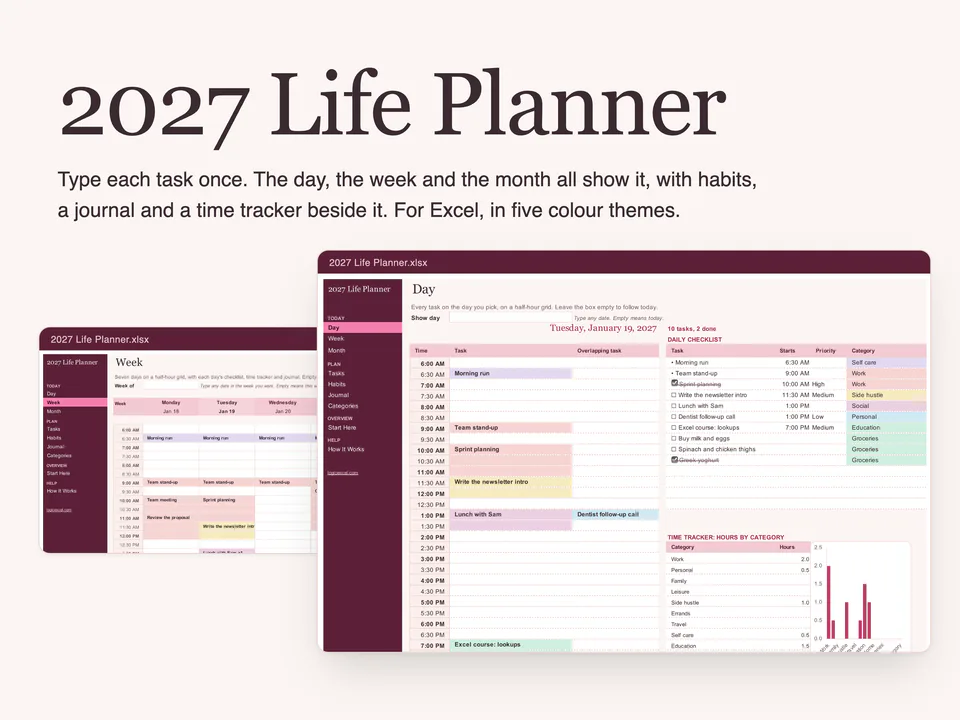
A monthly, weekly and daily planner for Excel and Google Sheets that you fill in once. Add each task to one list with its date, start time, how long it takes and a category, and the Day, Week and Month views lay it out for you on a half-hour time-blocking grid. Beside them: habits with streaks, a journal with a gratitude line and your meals, and 16 colour categories of your own. It comes in five colour themes: Sage, Emerald, Lumen, Blush and Midnight (dark). Pick any start month and get 12 months from it. It opens with an example week so you can see it working before you make it yours.
How it works
Set up in two minutes
On Start Here, pick the month the plan starts, whether weeks begin on Monday or Sunday and the hour your day starts. The steps turn green as you go.
Type each task once
On Tasks, add the task, its date, a start time and how many hours it takes. Pick a category for its colour and a repeat if it comes back. A date formula decides which days it falls on. Date functions lesson
Open your day
On Day, pick a date and your tasks are on the half-hour grid, with that day's checklist, groceries and journal lines. A time tracker adds up the hours by category. INDEX and MATCH lesson
Check the week and the month
Week shows seven days side by side with your main goals. Month shows every day with its tasks and your top priorities. Nothing is typed twice.
Tick habits and write a line
On Habits, tick the day. A run counter adds one for each tick in a row and goes back to zero on a missed day. On Journal, add a gratitude line and your meals. COUNTIF lesson
Start a new month
Nothing to clear. Open Month and pick the next one: tasks keep their own dates, so last month stays in last month.
4.5 LogicExcel rating · 782 ratings
From learners on LogicExcel's lessons and courses, made by the same team as this template. The template is new, so it has no ratings of its own yet.
Actually fun and well designed.
Easy to follow, actually fun and well designed.
Beginner friendly.
Easy to follow.
Beginner friendly.
Beginner friendly, easy to follow and actually fun.
Built from these Excel functions
Each one has a lesson you can practise in a live spreadsheet: learn the functions behind this template.
Price, access and refunds
- $29 once, no subscription.
- Pay, download, and keep the link we email you to download it again whenever you need it.
- A download cannot be given back, so a template is not refundable once bought. The refund policy has the details.
Pairs well with
Set every bill once. Your calendar, paychecks and debt payoff fill themselves in.
Questions
How do I time block in the 2027 Life Planner?
Type the task on Tasks with its date, a start time and the hours it takes. It then sits on the 30-minute grid on the Day and Week views, in its category color. Set the first hour of your day on Start Here; the grid shows 18 hours from there and never wraps past midnight.
Can I track habits and streaks in it?
Yes. On Habits, name up to ten habits once and tick each day in the month blocks. The sheet counts your streak now and your best streak, shows the percent done each month and charts it. A missed day ends a streak, and a tick belongs to its date, so changing the start month never moves one.
Is it a monthly planner or a weekly planner?
Both, and a daily one. Month shows the month with its top priorities, Week shows seven days at once with a chart of where each day's hours go, and Day shows one day on the half-hour grid. All three read the same task list, so nothing is typed twice.
How do repeating tasks work?
Pick a repeat on Tasks: every day, weekdays, weekly, every two weeks, every four weeks, monthly or yearly, with an end date if you want one. You type the task once and it shows on every date it falls.
Does my plan have to start in January?
No. On Start Here, pick any start month from January 2027 to January 2028 and the month list and the habit totals follow. Nothing you typed moves.
Which versions of Excel does it need?
It uses only functions Excel has had since 2013, so it does not need the newest version. Microsoft 365 draws real tick boxes; older versions show TRUE and FALSE, which you type in.
Does the 2027 Life Planner work in Google Sheets?
Yes. Your download includes a Google Sheets copy link: open it, choose Make a copy, and the planner lands in your own Drive with the example and the tick boxes ready. The Sheets copy is the Sage edition; the other editions are Excel files. In Sheets the 24-hour clock setting does not apply: select the times and use Format > Number > Time. Sheets also asks you to confirm before you change a locked formula cell.
Why is this better than a plain calendar or a paper planner?
You type each task once and the views do the rest. A plain calendar shows a day. This one also adds up your hours by category, lists your top priorities, repeats a task on the dates you choose and keeps your habit streaks and journal on the same dates, so you never copy anything from one page to the next.
Do I have to type a task on the Day, Week and Month tabs?
No. Tasks is the only place you type one. Day, Week and Month read it, so a change on Tasks shows up everywhere.
How do I get help if something does not work?
Write to the support address on Start Here and in the setup guide. We reply within a working day.
What if two tasks are at the same time?
Day shows the second one beside the first. Week shows a +1 after the first task's name. Both stay on Tasks, so nothing is lost.
How many tasks can it hold?
1,000 rows on Tasks, and a repeating task is one row. Day and Week show up to 24 tasks a day. Start Here counts the room left in each table.
Can I clear the example and use my own?
Yes. Open the Blank file in your download, which has the example cleared. Or clear the plain cells on Tasks and Journal and the habit names in the example file.
Can I print a day or a week?
Yes. Open Day or Week and choose File > Print. The page is set to fit one page wide, and Month prints on one page.
Does it go with the Budget Planner?
Yes. They share the same look, the same menu on the left and the same idea: type once and every view fills in. The Budget Planner plans your bills, paychecks and debts, and the Life Planner plans your days.