How to Pass the MO-200 Exam
The MO-200 is an official Excel certification exam run and managed by Microsoft.
The MO-200 is an official Excel certification exam run and managed by Microsoft.
Ready to practice?
Apply what you just learned with interactive exercises.
Taking this exam (and passing it!) will make you a Microsoft Office Specialist: Excel Associate (2019). It is one of the best and the most widely recognized certification programs for Excel skills.
It's not a piece of cake though!
The MO-200 is an exam designed by Microsoft to test your Excel proficiency.
The MO-200 exam consists of around 5 to 6 projects. Each project will have 5 to 6 tasks that must be completed. In total, you can expect around 30 questions (or tasks) in your exam.
The MO-200 exam is only 50 minutes.
The MO-200 exam is tested out of 1,000 points. To pass you must score 700 or more points.
The basic fee for the exam is $100. However, this fee does vary a little country-by-country. To take the exam, you need to buy an exam voucher from Certiport.
The MO-200 exam is conducted through Certiport; a leading provider of many IT certifications, including the MO-200. The exam can be taken in two ways:
Registering for the MO-200 exam is straightforward. Here's how:
Taking the MO-200 exam can be beneficial in a number of ways:
There are very few jobs that don't require Excel skills.
Many organizations require Excel proficiency for roles like data analysts, financial analysts, project managers, and administrative professionals.
While other candidates can say that they are proficient with spreadsheets and have attended Excel classes, a formal Microsoft certification will set you apart from other candidates.
By obtaining a certification, you can demonstrate objectively that you have the skills to work with spreadsheets, perform data analysis, and create complex formulas. The online verification system, which we cover below, also allows potential employers to verify your certification.
If you're setting up your profile on a website, like LinkedIn or Upwork you can add your certification to your profile.
You'll learn more about Excel!
While preparing for the certification exam you'll likely dive deep into various Excel features, functions, and techniques. This process allows you to expand your knowledge, discover new Excel functionalities, and develop a deeper understanding of Excel's potential.
Even if you already have experience with Excel, the certification process can help you uncover lesser-known Excel features (or even some features that you never knew existed).
The syllabus for MO-200 is made up of five main parts with varying weights.
| Syllabus Breakdown | Weight | Examinable Areas |
| Manage worksheets and workbooks | 10% - 15% | - Import data into workbooks from .txt and .csv files - Navigate and search for data within workbooks - Apply different formatting styles to worksheets and workbooks - Use different options to customize the view of your worksheet |
| Manage data cells and ranges | 20% - 25% | - Insert and delete columns - Paste data using Paste Special options - Use the Autofill feature - Formatting the cells in various ways - Summarize data visually |
| Manage tables and table data | 15% - 20% | - Create and format tables in Excel - Add, Remove, and format rows and columns in Excel tables - Filter and sort data in Excel tables |
| Perform Operations using formulas and functions | 20% - 25% | - Use a mix of absolute and relative references - Use named ranges/tables in formulas - Use the following functions to derive results: AVERAGE, MAX, MIN, SUM, COUNT, COUNTA, COUNTBLANK, IF, RIGHT, LEFT, MID, LEN, UPPER, LOWER, CONCAT, TEXTJOIN |
| Manage Charts | 20% - 25% | - Create charts and chart sheets - Add new data to the chart data series - Add new chart elements - Modify chart layouts/styles - Add alternative text to charts |
The first step to acing the MO-200 is familiarizing yourself with the skills that will be tested.
Identify the areas that you are not at the appropriate level to pass the exam.
If you are an Excel user already, you won't need to prepare from scratch.
You'll already be familiar with your strengths and weaknesses as well as with most of the topics on the syllabus, although you'll probably need to practice and review them.
Go through the skills outline, making notes of where you have a skill gap.
You now need to get organized with a plan and to get some study materials.
The study materials may help you with creating a study plan if not, make sure that you create a full plan, ideally writing it out in full.
Ensuring that you do all the practice required for the MO-200 will be difficult without a sufficiently detailed study plan.
There are a variety of study materials out there, from books and videos to the Microsoft Learning site and Udemy as well as interactive Excel lessons.
The MO-200 is a practical test.
When you learn a new Excel skill, you then need to make sure that you practice, practice, practice so that you will be able to apply it in the time available during the exam.
Practice exams are invaluable for getting familiar with the exam format, timing, and types of questions. They can also help you identify areas where you need more study.
Don't waste them. When you do one, try to imitate the exam conditions as closely as possible.
As previously mentioned, the MO-200 exam will contain 5-6 projects, and each project will have 5 or 6 tasks. Let's have a look at an example project below.
Here's a Project that refers to Sales Details.
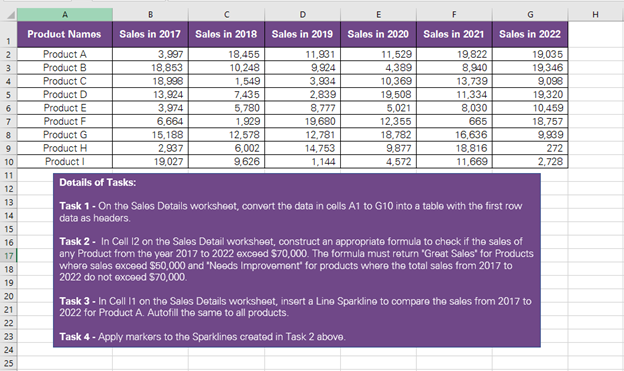
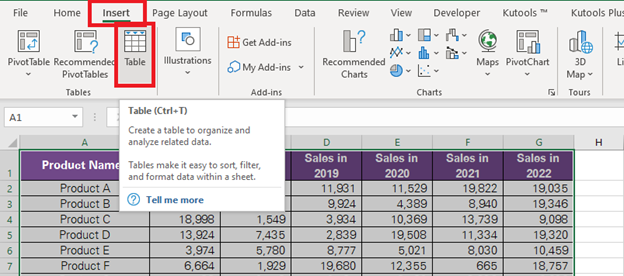
The first task on the task list is to convert the cells from A1 to G10 into a table. This is basically the all data on our spreadsheet, which is in the form of simple rows and columns.
This task comes from the following field of the MO-200 syllabus outline:
Manage tables and table data > Create and format tables > Create Excel tables from cell rangesTo convert a cell range into a table:
The second task on the list is to check if the total sales for any Product exceeds $70,000 between 2017 and 2022. If the sales exceed the given number, the formula must return "Great Sales". And if the total sales for any Product do not exceed $70,000, the formula must return "Needs Improvement".
Before we begin solving this task, it is important to identify which part of the syllabus this is coming from.
Perform Operations using formulas and functions > Calculate and transform data > Perform conditional operations by using the IF() functionThe function to be performed here is a logical test. This requires the use of an IF formula. The IF formula is critical not only to passing the MO-200 exam but also to utilizing Excel effectively. Get more practice with the IF formula now.
Before writing out IF formula, we need to determine what we are testing. In this case, the question is "do the sales from the year 2017 to 2022 for Product A exceed $70,000?"
This must be defined using the SUM function together with the "greater than >" logical operator.
As the underlying cell range has already ben converted into a table, we have used the table reference, instead of simple cell references. This is another skill on the MO-200 skills outline.
If you feel uncomfortable with this step, get some practice with the sum function or with logical operators.
Next we add our value if true ("Great Sales") and our value if false("Needs Improvement") to get our final formula.
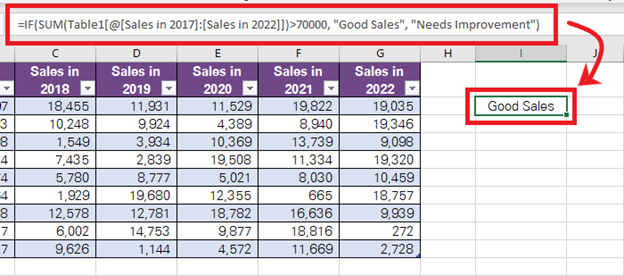
Finally, drag and drop the result down the whole list.
The third task of this project is to create Sparklines to visualize the trends in sales over the years.
This task comes from the Manage data cells and ranges > Summarize Data Visually section of the MO-200 syllabus.
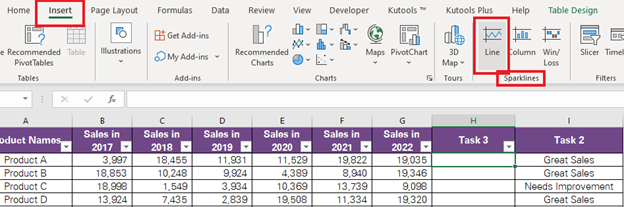
This is the last task of this project. It is a continuation of task 3 and is from the same part of the syllabus. Please note that where tasks in your MO-200 exam inter-relate it is important to carry out the tasks in the order requested.
Task 4 requires us to edit the Sparklines in Column H to include markers (small dots) on each trend point of the Sparkline.
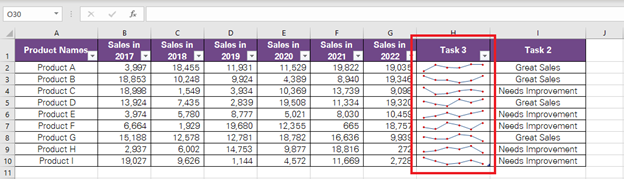
The task set above is a simple example of the type of tasks that might appear in a MO-200 exam. Of course, each separate exam will contain different tasks.
So there you have it: the definitive guide to acing Microsoft's MO-200 exam. We can't know exactly what will be on the exam, so it would be smart to brush up on all of your Excel skills, and Logic Excel is a great place to do that.
Keep practicing and you'll get that that golden Microsoft Associate seal in no time.
Guides people read next.
Learn how to prepare for Microsoft's MO-201 Excel certification exam.
14 minThe IF function in Excel returns one value if a condition is true, and another if the condition is false. Learn about this formula and practice some exercises.
7 min
Master SQL quickly with structured practice exercises with solutions. Improve your skills from beginner to advanced, step by step.
9 min