Here are the most common use cases you will handle with Excel percentage calculations:
- Percentage of a total: =42/50 returns 0.84; format as percentage to see 84%
- Percentage change between two values: =(New-Old)/Old
- Increase or decrease a number by a percentage: =Value(1+%) or =Value(1-%)
- Find the original total from a partial amount: =Partial/Percentage
- Find a specific amount from a known total: =Total*Percentage
Pro Tip: Never multiply your formula result by 100 manually. Excel's Percent Style button already does that multiplication. If you type =Part/Total100 and then apply Percent Style, you will see a number like 8,400% instead of 84%.*
How do you calculate percentage change between two numbers?

Percentage change tells you how much a value grew or shrank relative to its starting point. The formula for this is =(New-Old)/Old. Format the result as a percentage and Excel handles the rest.
A concrete example: earnings of $2,342 in November and $2,500 in December. Type =(2500-2342)/2342 and press Enter. The result is 0.06746. Apply Percent Style and you get 6.75%, the percentage increase. For a decrease, say earnings drop to $2,425 in january: =(2425-2500)/2500 returns -3.00%.
- Positive results indicate an increase; negative results indicate a decrease
- Always divide by the original (older) value, not the new one
- Format the result cell as a percentage after entering the formula, not before
How do you increase or decrease a number by a percentage?
Two formulas cover this entirely. To increase a value by a percentage, use =Value(1+Percentage). To decrease it, use =Value(1-Percentage). The parentheses are not optional: Excel calculates what is inside them first, which is what makes the math correct.
Say you spend $113 per week on groceries and want to increase that by 25%. Type =113(1+0.25) and you get $141.25. Cut it by 25% instead: =113(1-0.25) returns $84.75. With cell references, the formula looks like =B2(1+C2) or =B2(1-C2), which makes it easy to drag down an entire column.
- Use =B2*(1+C2) to apply a percentage increase stored in column C
- Use =B2*(1-C2) to apply a discount or reduction
- Parentheses around 1+C2 or 1-C2 are required for correct calculation
- Works for salary adjustments, price markups, discount pricing, and budget planning
How do you find the total when you know the partial amount and percentage?
When you know a partial value and the percentage it represents, divide the partial by the percentage to get the original total. The formula is =Partial/Percentage. A shirt sells for $15, which is 25% off the original price. That means $15 represents 75% of the original. Type =15/0.75 and Excel returns $20.00, the original price.
The same logic works in reverse. You want to find 8.9% of an $800 computer purchase for sales tax. Type =800*0.089 and you get $71.20. These two directions, finding the total and finding the amount, cover most real-world scenarios.
- To find the original total: =Partial/Percentage (e.g., =15/0.75)
- To find a specific amount: =TotalPercentage (e.g., =8000.089)
- Use cell references like =B2/C2 so the formula updates when values change
- Format result cells as currency or number depending on what you are calculating
Percentage formatting best practices in Excel
Excel stores every percentage as a decimal internally. When you see 25% in a cell, the underlying value is 0.25. That distinction matters because formulas always calculate on the underlying decimal, not the displayed percentage.
The cleanest workflow: write your formula first, get the decimal result, then apply Percent Style. Separating calculation from formatting keeps your underlying numbers usable for further computation. If you pre-format an empty cell as a percentage and then type 10, Excel displays 1000%, not 10%, because it multiplies by 100 automatically.
- Apply Percent Style after entering the formula, not before
- Use Ctrl+Shift+% as the fastest shortcut to apply percentage formatting
- To enter a percentage directly as a decimal, type 0.1 instead of 10%
- Increase decimal places in the format dialog if you need precision beyond whole numbers
Pro Tip: If a percentage result looks wildly wrong (like 5,000%), check whether you multiplied by 100 in the formula. Remove that multiplication and let Percent Style handle the display.
Practice percentage formulas with Logicexcel
Knowing the formulas is one thing. Getting them right under pressure is another. Logicexcel lets you practice Excel online with 95 free exercises where you type real formulas into a live Excel-like environment and get instant feedback on whether your answer is correct.
- Practice =Part/Total and percentage formatting in guided exercises
- Work through percentage change, increase, and decrease scenarios with real data
- Instant feedback catches errors like double multiplication before they become habits
- No account or software installation required; start immediately at no cost
For a broader foundation, the
Excel learning guides on Logicexcel cover formulas, functions, and formatting in structured, bite-sized lessons built for real-world application.
Does Excel have a built-in PERCENTAGE function?
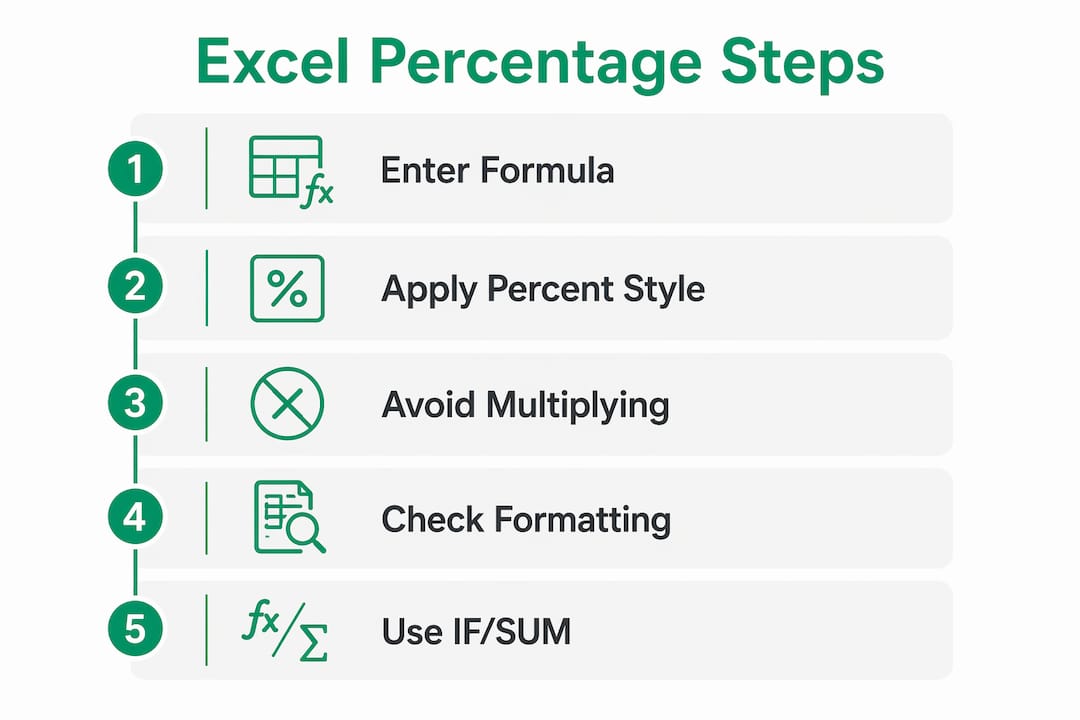
Excel does not have a dedicated function called PERCENTAGE. The percentage calculations you need come from standard arithmetic operators combined with cell formatting. The formula =Part/Total formatted as a percentage is the closest equivalent to what many users expect from a "percentage function." Understanding how Excel handles percentages as decimals makes this clear: the math is built into the format, not a separate function.
How do percentages work in charts and pivot tables?
In a pivot table, right-click any value field, choose "Value Field Settings," then select "Show Values As" and pick "% of Grand Total," "% of Row Total," or "% of Column Total." Excel recalculates every cell as a percentage of the reference you choose, with no formula required. For charts, format the data series labels as percentages through the "Format Data Labels" panel, or build your chart from a column that already contains percentage-formatted values. Pie charts display percentages by default when you enable data labels.
Common errors when working with percentage formulas
Three errors come up repeatedly. First, the double-multiplication mistake: writing =Part/Total100 and then applying Percent Style, which produces results like 8,400%. Remove the 100. Second, forgetting absolute references when copying a formula down a column. If your total is in B7, write $B$7 as the divisor so it does not shift when you drag the formula. Third, dividing by zero: if the denominator cell is empty or zero, Excel returns a #DIV/0! error. Wrap the formula in =IFERROR(Part/Total,"") to display a blank instead.
Combining percentage formulas with IF, SUM, and AVERAGE
Percentage formulas pair naturally with other Excel functions. A few practical combinations:
With IF: Flag values above a threshold.
=IF(B2/C2>0.9,"Pass","Fail") checks whether a score exceeds 90% and returns a label. This is useful for grading, KPI tracking, or quality control.
With SUM: Calculate what portion of a total a group represents.
=SUM(B2:B5)/SUM(C2:C5) gives the combined percentage across multiple rows, more accurate than averaging individual percentages. You can also practice
SUM function exercises on Logicexcel to build fluency before combining it with percentage logic.
With AVERAGE: =AVERAGE(B2:B10)/C1 finds the average value as a percentage of a benchmark. Format the result as a percentage and it reads cleanly in any report. For hands-on practice with the AVERAGE function specifically, Logicexcel has a
dedicated AVERAGE exercise that reinforces the concept before you layer in percentage formatting.
*
Key Takeaways
Mastering Excel percentage formulas requires two things: the right arithmetic formula and correct cell formatting applied in the right order.
| Point | Details |
| Core formula | Use =Part/Total and apply Percent Style; never multiply by 100 manually in the formula. |
| Percentage change | The formula =(New-Old)/Old calculates both increases and decreases; format the result as a percentage. |
| Adjust by a percentage | Use =Value(1+%) to increase and =Value(1-%) to decrease; parentheses are required. |
| Find the original total | Divide the known partial amount by its percentage: =Partial/Percentage (e.g., =15/0.75 returns $20). |
| Avoid common errors | Lock divisor cells with $ references, skip manual *100, and use IFERROR to handle division by zero. |
*
FAQ
How do I calculate 15% of a number in Excel?
Type =A1*15% directly to multiply by 15%. Both methods return the same result.
How do I calculate 20% of a number in Excel?
Use =A120%. To subtract 20% from a value, use =A1(1-20%).
How do I calculate 25% of a number in Excel?
Type =A10.25 or =A125%. To find the original price when $15 is 25% off, use =15/0.75, which returns $20.
How do I calculate 10% of an amount in Excel?
Use =A10.1 or =A110%. For a 10% increase, use =A1(1+0.1); for a 10% decrease, use =A1(1-0.1).
Recommended