Excel Ninja Skills: The 2026 Professional's Guide

An Excel ninja is a professional who uses advanced Excel techniques, shortcuts, and automation features to work faster, reduce errors, and extract meaningful insights from data. The term is informal. The recognized industry label is "Excel power user," and the two describe the same skill set: fluency in formulas, automation, and workbook design that goes well beyond basic spreadsheet use. Mastering five essential shortcuts alone can save 20 to 30 minutes of manual work every day. That adds up to more than two hours per week, recovered from tasks that should never have been manual in the first place. This guide covers the exact techniques, habits, and tools that separate Excel power users from everyone else.
What does an Excel ninja actually know?
The core skill set of an Excel ninja breaks into four areas: keyboard shortcuts, modern formulas, automation tools, and workbook design. Most professionals are strong in one area and weak in the others. The goal is to close those gaps fast.
Excel power users think in terms of time cost. Every manual step that can be replaced by a formula, a shortcut, or a query is a step worth replacing. The professionals who move fastest are the ones who have internalized that principle and applied it consistently across their daily workflows.
Essential shortcuts and formulas every power user must master
Speed starts with the keyboard. Four shortcuts deliver the highest return for most professionals.
- Ctrl+T converts a data range into a formal Excel Table, which enables structured references and auto-expanding ranges.
- Alt+= triggers AutoSum instantly, eliminating the need to type SUM formulas by hand.
- F4 locks a cell reference, cycling through absolute and relative modes without touching the mouse.
- Ctrl+Shift+L toggles filters on and off in one keystroke.
These four shortcuts are the foundation of faster spreadsheet work. Practice them with Logicexcel's
intro shortcuts exercises until they become automatic.
Modern formulas vs. legacy functions
The biggest formula upgrade available right now is replacing VLOOKUP with XLOOKUP. XLOOKUP handles left and right lookups, manages missing values cleanly, and stays intact when columns are inserted or deleted. VLOOKUP breaks in all three of those situations. The switch is not optional for anyone serious about accuracy.
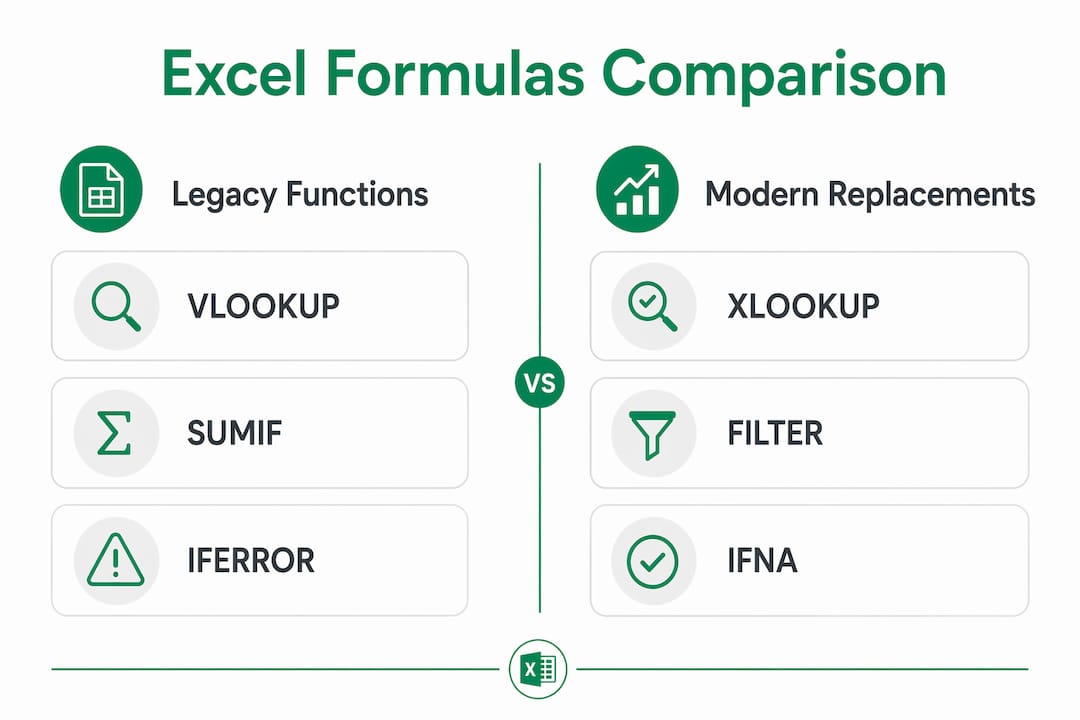
| Legacy function | Modern replacement | Key advantage |
| VLOOKUP | XLOOKUP | Handles left/right lookup, no column index needed |
| IF + IFERROR nested | IFERROR wrapping XLOOKUP | Cleaner, shorter, easier to audit |
| SUMIF | SUMIFS | Supports multiple criteria natively |
| Array formulas (Ctrl+Shift+Enter) | FILTER, UNIQUE, SORT | Spill automatically, no special entry |
Practice XLOOKUP directly in Logicexcel's
XLOOKUP practice exercise to build the muscle memory before applying it in live files.
Pro Tip: Memorize shortcuts in groups of three. Learn Ctrl+T, Alt+=, and F4 together this week. Add Ctrl+Shift+L and Ctrl+Z next week. Spaced repetition beats cramming every time.
How do automation tools change the way you work?
Automation is where Excel power users separate themselves from the rest of the office. Three tools drive the most impact: Excel Tables, dynamic arrays, and Power Query.
Converting a range into an Excel Table with Ctrl+T does more than format your data. It creates structured references like
=Table1[Revenue] that update automatically as rows are added. Linked PivotTables refresh cleanly. Formulas do not break when the dataset grows. That single habit eliminates a category of errors that wastes hours in unstructured sheets.

Dynamic arrays take automation further. The FILTER function returns a list of rows that meet a condition, with no helper columns required. UNIQUE pulls a deduplicated list from any column. SORT orders data without touching the original range. SEQUENCE generates numbered lists for calendars, schedules, or lookup tables. These functions replace dozens of legacy workarounds and make formulas shorter and easier to read.
Power Query sits above all of it. Power Query saves 30 to 120 minutes weekly on data cleanup tasks like removing duplicates, splitting columns, and merging tables from multiple sources. Dynamic arrays and XLOOKUP each save an additional 10 to 60 minutes per week. Combined, these tools can recover a full workday every month.
Pro Tip: Start automation with the most repetitive task you do each week. If you clean the same report every Monday, build a Power Query step for it. One solved problem builds the habit of solving the next one.
AI and Copilot in Excel
Microsoft Copilot in Excel generates formulas from plain English descriptions and suggests data cleaning steps based on your dataset. It is not a replacement for understanding formulas. Professionals who know what a formula should do get far more value from Copilot than those who do not. Use it to accelerate work you already understand, not to skip the learning.
What makes a workbook error-resistant?
Expert workbook design is not about aesthetics. It is about building files that do not break when someone else edits them, or when you return to them six months later.
Experts avoid hard-coding numbers inside formulas. A formula like =Revenue0.15 is fragile. A formula like =RevenueTaxRate where TaxRate is a named range in a dedicated inputs section is maintainable. Named ranges make formulas readable and make updates safe.
Here are four habits that make workbooks last:
- Use Data Validation on every input cell. Data Validation restricts the data types and values allowed in a cell, which prevents formula errors before they happen. A dropdown list beats a free-text cell every time.
- Freeze the top row and left column. Small habits like freezing headers prevent navigation errors and make large sheets usable for anyone opening the file.
- Add comments to non-obvious formulas. A note explaining why a formula exists saves the next person from deleting it.
- Build a checks layer. A row of test lookups compares formula outputs against known values. If a workbook change breaks a calculation, the check row flags it immediately. In complex financial models, this layer is the difference between catching an error in testing and catching it in a board presentation.
Pro Tip: Create a dedicated "Inputs" tab for all hard-coded values. Every formula in the model should reference that tab. When assumptions change, you update one place, not fifty formulas.
How do PivotTables speed up data analysis?
PivotTables are the fastest way to summarize large datasets without writing a single formula. Drag a field to Rows, drag a measure to Values, and Excel produces a summary in seconds. Most professionals use only 20% of what PivotTables can do.
The features that go unused are the most powerful ones:
- Distinct count: Add your data to the Data Model before creating the PivotTable. This unlocks a "Distinct Count" summarization option that counts unique values. Without it, you need a COUNTIF formula and a helper column.
- Show Values As: Right-click any value field and choose "Show Values As" to display running totals, percentage of grand total, or difference from a previous period. These calculations replace manual formula work that breaks every time the source data changes.
- Slicers and timeline filters: Insert a slicer to add a clickable filter panel to any PivotTable. Add a timeline filter for date fields. Both tools let non-technical colleagues filter reports without touching the underlying data.
- Grouping: Right-click a date field and group by month, quarter, or year. Right-click a number field and group into bands. No helper columns, no formulas.
PivotTable native capabilities like slicers and calculated fields replace complex manual calculations and reduce breakage from source data changes. The professionals who know these features produce reports in minutes that take others an hour.
Key Takeaways
Becoming an Excel power user requires mastering shortcuts, modern formulas, automation tools, and workbook design habits that together eliminate manual work and prevent errors.
| Point | Details |
| Shortcuts save real time | Five core shortcuts save 20 to 30 minutes of manual work daily. |
| Replace VLOOKUP with XLOOKUP | XLOOKUP handles left/right lookups and stays intact when columns change. |
| Power Query automates cleanup | Power Query recovers 30 to 120 minutes weekly on repetitive data tasks. |
| Design workbooks to last | Named ranges, Data Validation, and a checks layer prevent silent errors. |
| PivotTables do more than you think | Distinct count, slicers, and "Show Values As" replace hours of manual formula work. |
Why most Excel training misses the point
The standard advice is to learn more functions. That is not wrong, but it is incomplete. The professionals I have seen make the fastest progress are not the ones who memorized the most formulas. They are the ones who changed how they think about repetitive work.
Every time you do something manually in Excel, the right question is: "Could a formula, a query, or a table handle this automatically?" That question, asked consistently, builds the habits that define a real Excel power user. The functions follow naturally once the mindset is in place.
The other thing most training skips is workbook design. A formula that works today but breaks when a column is added is not a good formula. A workbook that only the person who built it can navigate is a liability. The best Excel professionals build files that other people can use, audit, and maintain. That skill is rarer than knowing XLOOKUP, and it is worth more.
My honest recommendation: start with the four core shortcuts this week. Add Power Query next. Then rebuild one real workbook using named ranges and a checks layer. You will learn more from that one rebuild than from ten hours of passive tutorial watching.
> — Nkosi
Build your Excel skills with Logicexcel
Knowing the techniques is the first step. Retaining them requires practice in a real Excel environment, not passive video watching.

Logicexcel offers 95 free, interactive exercises where you type formulas and get instant feedback, with no sign-up required. The Excel learning guides cover everything from core shortcuts to advanced functions like XLOOKUP, dynamic arrays, and PivotTables. Each lesson is built for immediate application, so the skills you practice today show up in your work tomorrow. If you want to go deeper, the free Excel course takes you from beginner to advanced in a structured sequence. Start with the skill that costs you the most time right now.
FAQ
What is an Excel ninja?
An Excel ninja, also called an Excel power user, is a professional who uses advanced shortcuts, formulas, and automation tools to work faster and reduce errors in spreadsheet tasks.
Which Excel shortcuts save the most time?
Ctrl+T, Alt+=, F4, and Ctrl+Shift+L are the four shortcuts with the highest daily impact, saving 20 to 30 minutes of manual work per day when used consistently.
Is XLOOKUP better than VLOOKUP?
XLOOKUP is better in every practical way. It handles left and right lookups, manages missing values without extra formulas, and does not break when columns are inserted or deleted.
How long does it take to become an Excel power user?
The timeline depends on practice frequency, not total hours. Professionals who practice daily with real files and targeted exercises build fluency significantly faster than those who watch tutorials passively.
What is Power Query used for in Excel?
Power Query automates data cleaning tasks like removing duplicates, merging tables, and splitting columns. It saves 30 to 120 minutes weekly for professionals who work with recurring data imports or reports.
Recommended